
| Previous
Page |
PCLinuxOS
Magazine |
PCLinuxOS |
Article List |
Disclaimer |
Next Page |
An Alternative to Microsoft Office: SoftMaker FreeOffice 2024 |
|
by David Pardue (kalwisti)
SoftMaker FreeOffice is a free (of cost) but proprietary office suite developed by SoftMaker Software GmbH in Nuremberg, Germany. The full-featured (paid) version of the program is called SoftMaker Office. (It is a bit confusing because there are actually four versions of SoftMaker Office: two versions of Office NX [subscription-based], and two versions of Office 2024 [Professional and Standard]. Each version has a slightly different feature set, depending on the software’s cost. As of June 2025, SM Office 2024 can be purchased from several US-based retailers such as Amazon, B&H, Newegg, Staples and even Walmart.)  Agent Smith (Alessandro) wrote a review of FreeOffice 2021 which was published in the November 2021 issue of our community magazine. Most of the information in the earlier article still applies to FreeOffice 2024, so this refresh will primarily focus on two additional methods of installing the program, as well as providing instructions for uninstalling it. SoftMaker FreeOffice uses the freemium model, i.e., it has limited functionality compared to the full (paid) version of SoftMaker Office. It is intended to be a demo/introduction to the SM Office suite, and to promote its flagship commercial product. However, for “average” writing tasks, such as composing letters, writing the occasional essay or article, I believe that you will find FreeOffice more than adequate. Another advantage is that FreeOffice 2024 offers these basic features at no cost; once you install (and activate) the software, you may use it for as long as you wish. Before proceeding, I must mention that installing SM FreeOffice violates one of the standard rules of PCLinuxOS system maintenance: to only install programs from the official PCLinuxOS repository. However, in this case, I can assure you that installing FreeOffice is safe and will not bork your PCLinuxOS installation. I followed the procedure below on two different PCLinuxOS computers and have not experienced any glitches or breakage.
To get FreeOffice 2024, point your web browser to its Download page, look for the “Linux” box and click on the Download button to download the .rpm package. 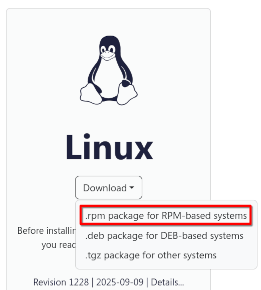 The RPM file is 99 MB in size.
Command Line The most efficient way of installing the package is via the command line. Open a Terminal/Konsole and become the superuser by typing “$ su -” (there is a space and a single hyphen following su) and entering the root password. Next, install the RPM file using this command: # rpm -ivh softmaker-freeoffice-2024-1228.x86_64.rpm In case you are curious, here is a gloss of the options used in that command: -i : install -v : verbose (provide output in the Terminal) -h : hash (i.e., print 50 hash marks as the package archive is unpacked) You should see output similar to the following:
[root@pclos-darkstar-vb Downloads]# rpm -ivh softmaker-freeoffice-2024-1228.x86_64.rpm After the package has been installed, entries for the FreeOffice modules will appear in the Office category of your main menu. 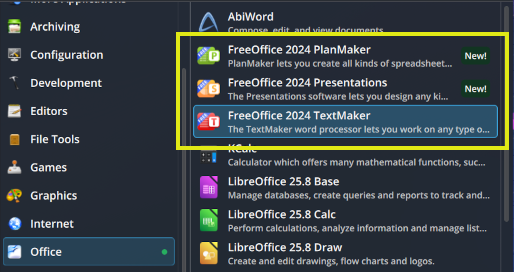 (Note: If the FreeOffice entries do not appear, log out of your session, then log back in.)
PCLinuxOS has two homegrown graphical installers for locally installing RPM packages: rpm-installer and PkgBuddy (created by Upgreyed). Although PkgBuddy is a newer utility, I tried both tools and each one worked smoothly.
I slightly prefer PkgBuddy because it is a newer tool. You may install the package (name: pkgbuddy) via DNF Package Manager or Synaptic. After installing PkgBuddy, follow the steps below to configure it for KDE Plasma 6, MATE or Xfce.
To use PkgBuddy in KDE 6, follow these steps: Right-click on the SM FreeOffice RPM file in your Downloads folder > and select Properties. Under the General tab, look for the Open With: line and see if PkgBuddy is listed as the default application. 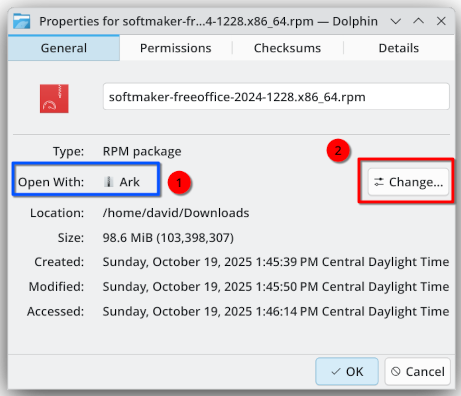 If PkgBuddy happens to be listed as the default, click the OK button to close the dialog box. Then, right-click on the SM FreeOffice RPM file again > and choose Open with PkgBuddy. If it is not listed as the default, click on the Change button. A dialog box will open, listing the Application Preference Order: 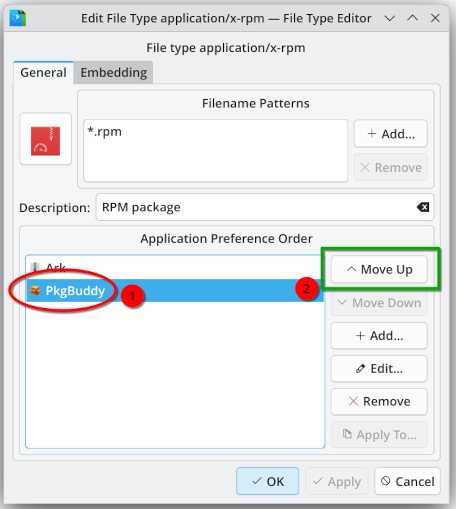 Move the entry for PkgBuddy to the top of the list by selecting it and clicking on the Move Up button. Then, click the OK button in the dialog box to apply the change. 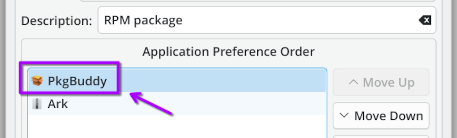 Right-click on the SM FreeOffice RPM file > and choose Open With PkgBuddy. 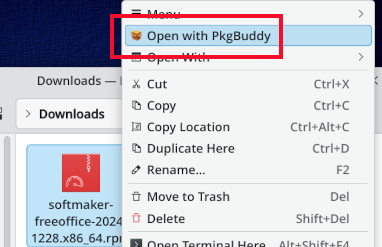 A dialog box will open and prompt you to enter the administrative (root) password. 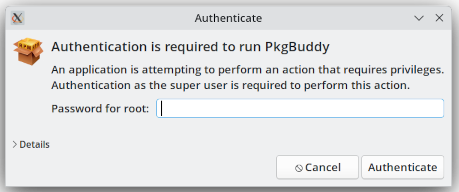 Type the root password and press the Authenticate button. A new dialog box will open. 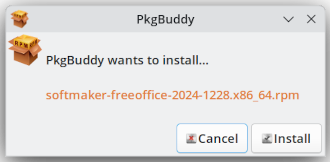 Click on the Install button. The PkgBuddy dialog box will disappear after a few seconds. Don’t panic! The utility is working silently; it will need several minutes to complete the SoftMaker RPM installation. A confirmation dialog will appear when the installation finishes. 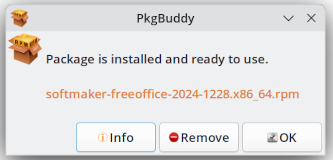 Click the OK button to close the confirmation dialog. Entries for the FreeOffice modules should appear in the Office category of your main menu. If you do not see those entries, log out of your session, then log back in.
The steps for using PkgBuddy in MATE are very similar to those for KDE Plasma 6. Right-click on the SM FreeOffice RPM in your Downloads folder > and select Open With Other Application. A dialog box will open. Look for the “Use a custom command” option and click on it. In the box, type: pkexec /usr/bin/pkgbuddy. 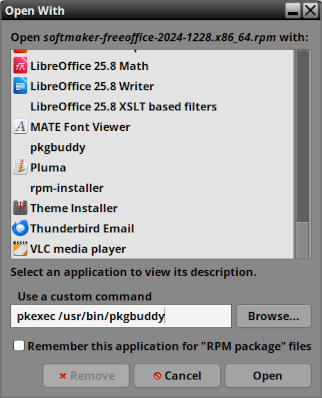 Click on the Open button. A dialog box will open and prompt you to enter the administrative (root) password. 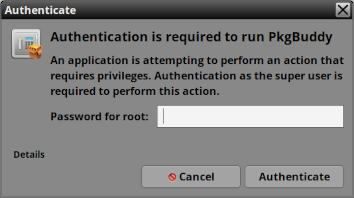 Type the root password to launch PkgBuddy. Afterwards, the remaining steps are identical to those described in the KDE 6 section above.
To use PkgBuddy in the Xfce DE, the steps are almost identical to those for MATE above. Right-click on the SM FreeOffice RPM in your Downloads folder > and select Open With Other Application. The main difference is that when you reach the step of “Use a custom command”, you need to type the command: gksu /usr/bin/pkgbuddy. 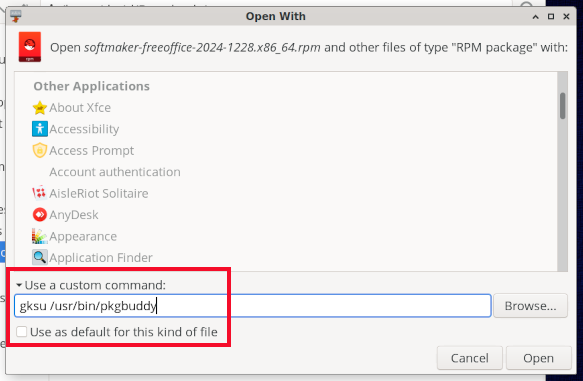 (A technical digression: In a virtual machine with Xfce, I made multiple attempts to get pkexec working properly with the /usr/bin/pkgbuddy command, but was unable to resolve the issue before press time.) Users have been encouraged to use pkexec as an alternative to the deprecated gksu. In a nutshell, prominent Linux distributions have abandoned the gksu utility due to its security vulnerabilities and unmaintained status, as well as its incompatibility with the Wayland display server. The recommended replacement for gksu is PolicyKit (pkexec) which is secure and provides granular privilege elevation. However, gksu is still available in PCLinuxOS. It works, and it should be safe in this situation (my opinion) because PkgBuddy has a very limited use case.
The process of configuring the RPM-Installer utility is very similar to PkgBuddy. Although it is an older tool, it still works reliably. After installing the rpm-installer package via DNF Package Manager or Synaptic, follow the steps below.
Right-click on the SM FreeOffice RPM in your Downloads folder > and select Properties. Under the General tab, look for the Open With: line. If RPM-Installer is not the default choice, click on the Change button. 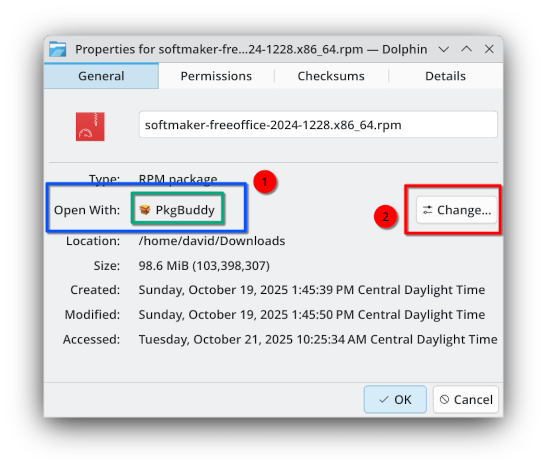 A dialog box will open, displaying the Application Preference Order. Move the entry for RPM-Installer to the top of the list by selecting it and clicking on the Move Up button. Then, click the OK button to apply the change. 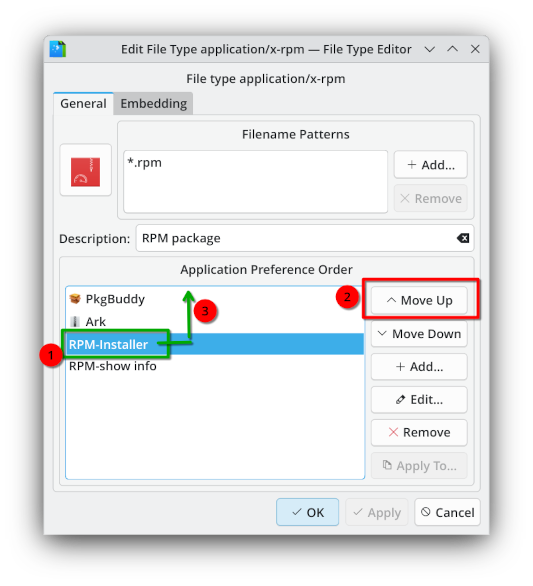 Next, right-click again on the SM FreeOffice RPM icon > and choose Open with RPM-Installer. This will launch an Xterm terminal emulator window. You will be prompted to enter the root password. Type “y” to proceed with installing the software. 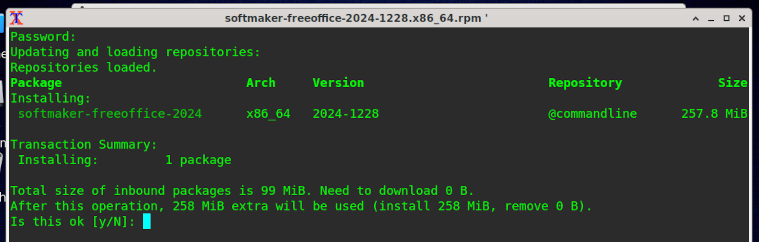 Wait patiently while the installation takes place. You should see Xterm output similar to the screenshot below: 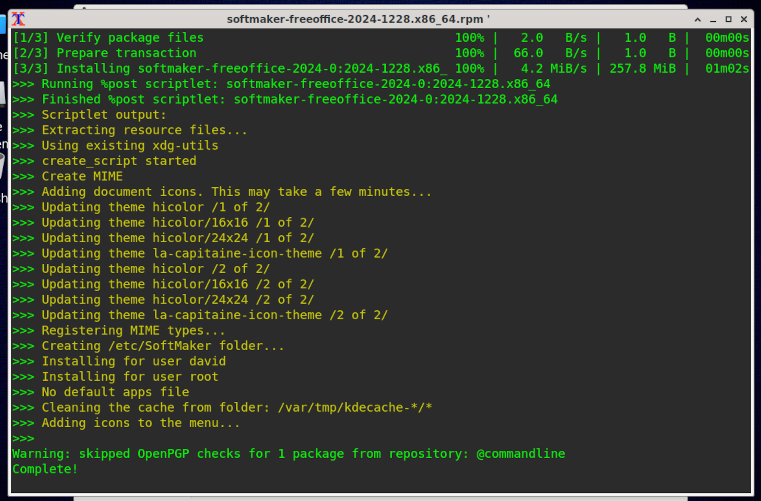 After RPM-Installer finishes, close the Xterm window by clicking on the Close (X) button. Entries for the FreeOffice modules will appear in the Office category of your main menu. If you do not see those entries, log out of your session, then log back in.
Word processing is my main activity, so I concentrated on evaluating TextMaker. It is pleasant to use; I wrote this article with it, using FreeOffice’s native .tmdx file format, then saved the file in ODF (Open Document Format, viz. .odt) and made final layout adjustments with LibreOffice Writer before submitting it to the magazine. For me, the most crucial missing features are the lack of footnotes/endnotes, no capability for generating a table of contents and the inability to navigate within the document via the Sidebar. Some other limitations which do not bother me, but might be important to your workflow, include: no capability for adding comments or tracking changes; no index generation; no grammar check or thesaurus. 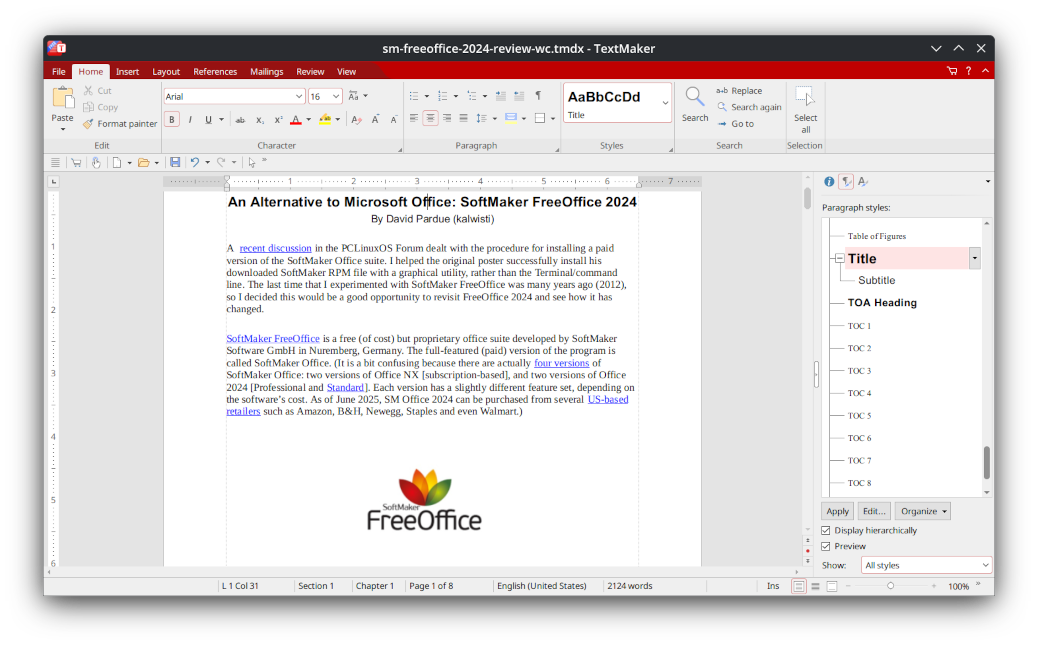 PlanMaker, the spreadsheet module, can open .ods files but cannot Save As in ODF format. The “Save As” options are .pmdx (SM-native format), .xlsx, .xls, .csv, .html and .txt. PlanMaker is not able to execute macros and VBA scripts stored in MS Excel documents. The Presentations module cannot open Open Document .odp files at all. The “Save As” options are: .prdx (SM-native format), .pptx, and .ppt. On the positive side, I experimented with opening a variety of MS Office-generated files, such as document templates from Microsoft’s Create gallery as well as spreadsheets from data.gov. FreeOffice 2024 did a good job of faithfully reproducing the Office-formatted documents. Registering FreeOffice 2024 after its 10-day trial period was straightforward; I just provided my e-mail address. (The submission form did not ask for my name.) I received an Activation number via e-mail, then entered it by clicking on the ”?” icon (top right corner of the toolbar) > and selecting “Manage license …”. The terms of FreeOffice’s license are reasonable, in my opinion. The license allows FreeOffice to be used on 3 computers that belong to the same family household — on any combination of Linux, macOS, and MS Windows — or on 1 computer that belongs to an organization.
If you change your mind and wish to uninstall FreeOffice 2024, you must use the Terminal/Konsole. First, become the superuser by typing ”$ su -” (there is a space and a single hyphen following su) and entering the root password. Either one of the commands below will remove the program: # rpm -e softmaker-freeoffice-2024-2024-1228 # dnf remove softmaker-freeoffice-2024.x86_64
SoftMaker FreeOffice 2024 is a worthwhile option if you need an office suite that is free, cross-platform and more lightweight than LibreOffice. FreeOffice features high compatibility with Microsoft Office files, and its interface resembles MS Office (if you choose the “ribbon” design). TextMaker is a more powerful word processor than AbiWord. Since SM Office is made in the European Union, it is GDPR (General Data Protection Regulation)-compliant. The GDPR ensures the privacy and protection of personal information.
User manuals for TextMaker, PlanMaker and Presentations are available here: Download: Free manuals for FreeOffice There is an English-language Support forum: SoftMaker.com Support Forum (English) The FreeOffice 2024 for Linux section can be accessed at: SoftMaker.com - FreeOffice 2024 for Linux If you can read German, there is also a German-language Support forum: |
