| Previous
Page |
PCLinuxOS
Magazine |
PCLinuxOS |
Article List |
Disclaimer |
Next Page |
Tip Top Tips: My IP Address |
Editor’s Note: Tip Top Tips is a semi-monthly column in The PCLinuxOS Magazine. Periodically, we will feature – and possibly even expand upon – one tip from the PCLinuxOS forum. The magazine will not accept independent tip submissions specifically intended for inclusion in the Tip Top Tips column. Rather, if you have a tip, share it in the PCLinuxOS forum’s “Tips & Tricks” section. Occasionally, we may run a “tip” posted elsewhere in the PCLinuxOS forum. Either way, share your tip in the forum, and it just may be selected for publication in The PCLinuxOS Magazine.
 Image by Gerd Altmann from Pixabay This month’s tip comes from SemperOSS. Okay, I have been here before with ways to get the current IP address from the command line — but this time, let me show how it can be done from the applications menu on your desktop. It comprises two parts: the actual script, and a .desktop-file that shows up in the menu. The script depends on the program dig, which is part of the standard installation of PCLinuxOS, and the program zenity, which can be installed with Synaptic. The script (called “myip-gui,” and stored in “/usr/local/bin”):
#! /bin/bash And the .desktop file is stored in ".local/share/applications/myip-gui.desktop" in your home directory:
[Desktop Entry] Remember that you need to be root to store files in "/usr/local/bin," and that the script must be made executable with the command (again as root) "chmod +x /usr/local/bin/myip-gui". You should now find a menu item called "myip" in the applications menu, in the "More Applications" section. 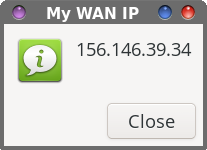 In a follow-up reply, Cúig noted that a user could easily monitor their IP address from either of two commands on the command line: curl ifconfig.co/ip and/or curl ip.me. He also pointed out that you could put it all into a desktop file if that is what is needed, without even creating a script, like below:
[Desktop Entry] SemperOSS replied that yes, it is easier, indeed, but pointed out that many (most?) are not comfortable using the command line if avoidable … and it works too — but misses an opportunity to show a bit of bash scripting if people are interested. He also pointed out that it could even be simplified by changing the Exec line to: Exec=zenity --info --text="$(curl ifconfig.co/ip)" --title="My WAN IP" --ok-label=Close & which (with the extra quotes), also handles the case of the website spitting something unexpected out containing spaces. |