
| Previous Page |
PCLinuxOS Magazine |
PCLinuxOS |
Article List |
Disclaimer |
Next Page |
Inkscape Tutorial: Boolean Path Operations |
|
by Meemaw
Here’s the menu: 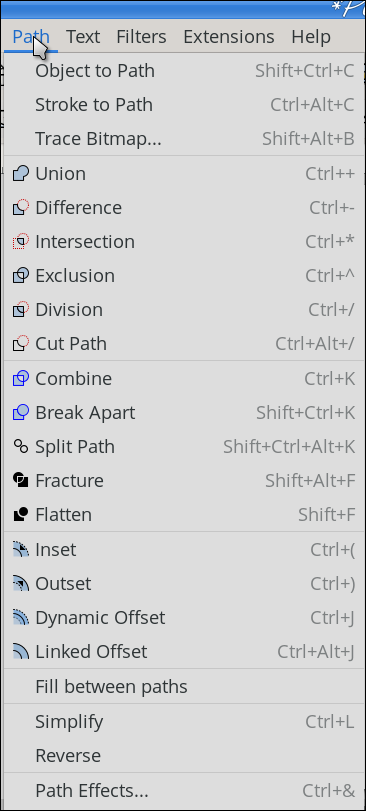 Bear in mind that some of these operations work on only two objects at a time, so if you have more objects, you’ll have to adapt a bit, depending on how you want to end up and which operation you use. Union Union puts together two objects. If they overlap, Union combines them into one item. If they are different colors, Union will use the bottom object’s color. If they don’t overlap, the bottom color will be used, but the objects will be grouped. 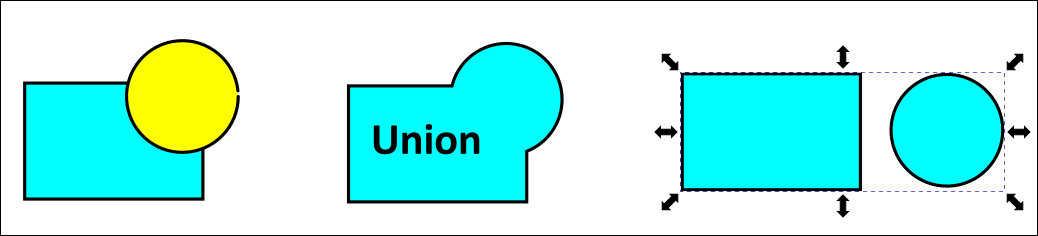 Difference Difference cuts part of the object out. If they overlap, the top shape will be cut out of the bottom shape, and the top shape will be deleted. If they don’t overlap, the top shape will be deleted. 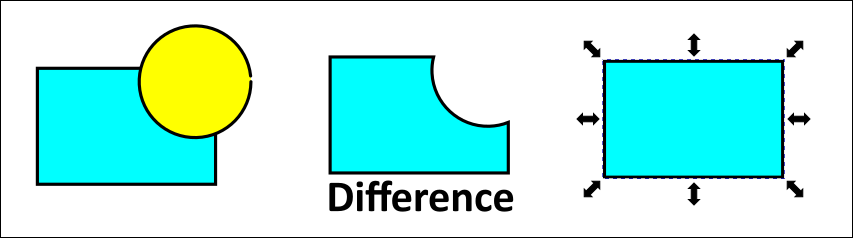 You can take more than one shape away, separately, or, using the Union operation on the objects you want to cut out, do it once.
If Intersection is performed on these two items while they are overlapping, the only thing left will be the part of each shape that they have in common. If they don’t overlap, there is no Intersection, and the operation removes both shapes. 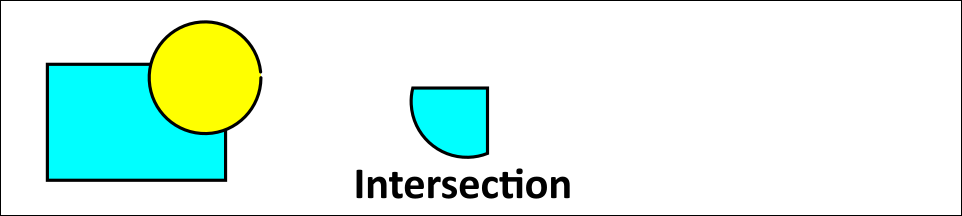 Exclusion In Exclusion, overlapping shapes will have the part they have in common removed. If they don’t overlap, they will both have the bottom item’s color. 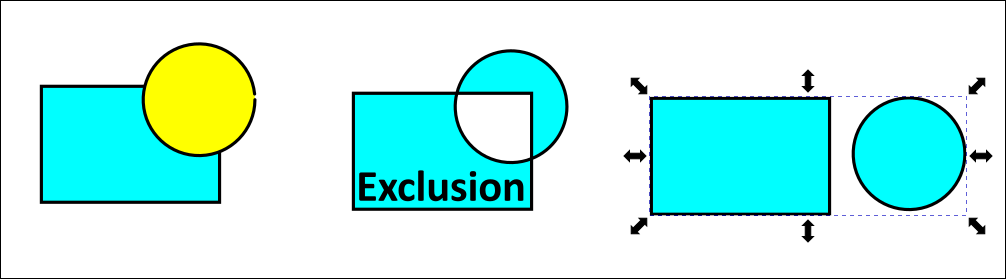 If you have an object you want to just cut a piece out of, Exclusion will work. Remember, both objects have to be paths (so an imported image won’t work). In this operation, the white letters in the heart are actually a hole and an object placed behind them will show through. 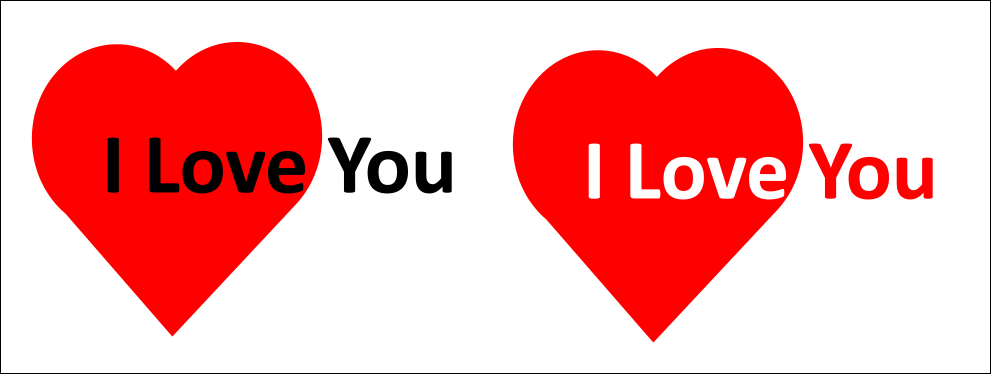 Division In Division, the bottom shape will be cut along the edge of the overlapping top shape. If they don’t overlap, the top shape will disappear. 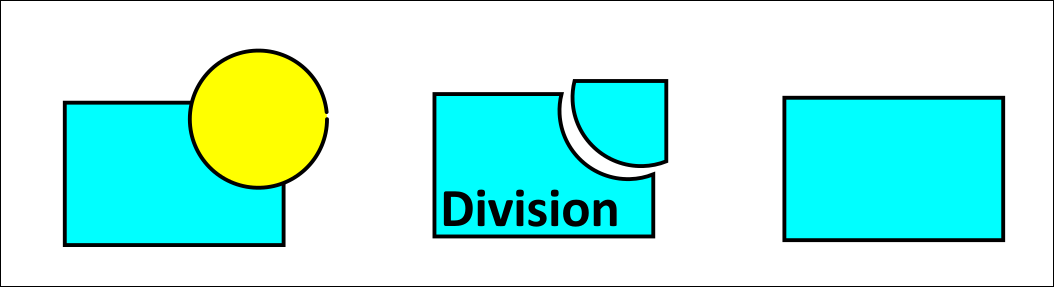 An easy use for this would be anything you want to show in two pieces, like a pie chart. You can do it more than once. Just choose the ones you want to cut out and use union first (two at a time). 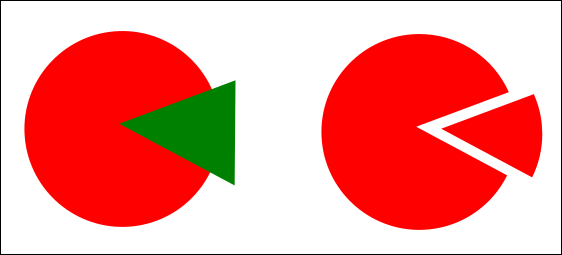 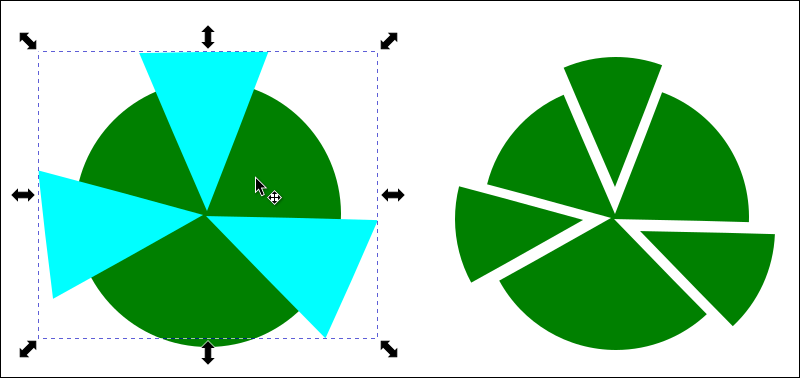 Cut Path Cut Path is similar to Division, except that it removes the fill color from your object. If the objects are overlapping, it will cut the bottom object and remove the fill, and the top object will disappear. If they don’t overlap the top object will disappear and the bottom fill will be removed. 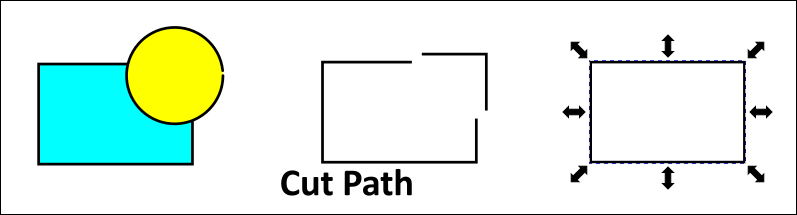 Combine Combine does what it sounds like, combining the two objects and using the top object’s fill color. If they overlap, the strokes are saved, which makes it different from Union. Combine makes the two objects sub-paths, which means you can edit them with the nodes tool. If they don’t overlap, they are “grouped” and the fill color of the top object is kept. 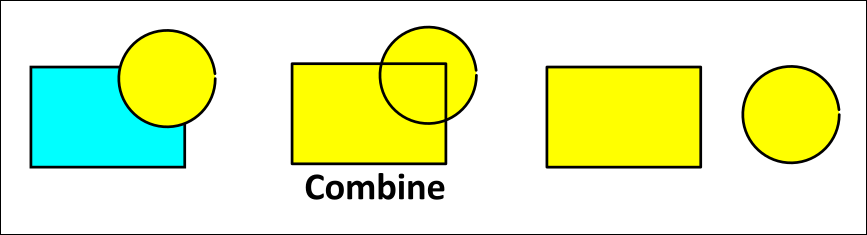 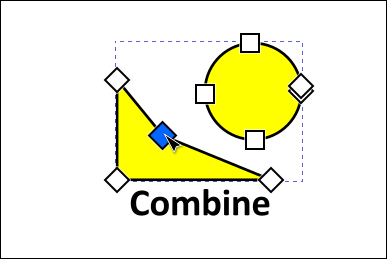 Combine works on more than two objects, too. Going back to our pie, you can draw your lines to make the pieces. Before you use division, select the lines and use Combine, then use Division. 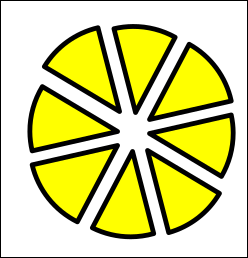 Break Apart This is kind of an undo for Combine (or even Exclusion). If you had combined two objects, and later decide you wanted them separate again, you could use Break Apart. Depending on what your object looks like, you might get some extra pieces. On this one I used Exclusion, and got the white spaces, which were transparent. If I decided I didn’t want those “holes”, I could use Break Apart to restore the objects as they were. 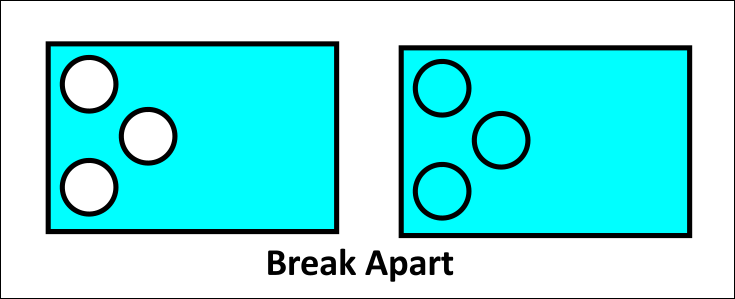 Split Path Split Path is kind of an undo for Combine, undoing the sub-paths. However, if the sub-paths are overlapping, it doesn’t do anything. If the sub-paths are not overlapping, it will separate them. Actually, the best use I’ve seen for Split Path is on text editing. When you create text and use Split Path, it separates the letters so you can deal with one at a time. This is especially useful if you want to spread your letters out unevenly. On the left, the whole word was one object, but on the right, each letter is its own object.  Fracture Fracture cuts objects into pieces according to their stroke lines. It can work on more than two objects. 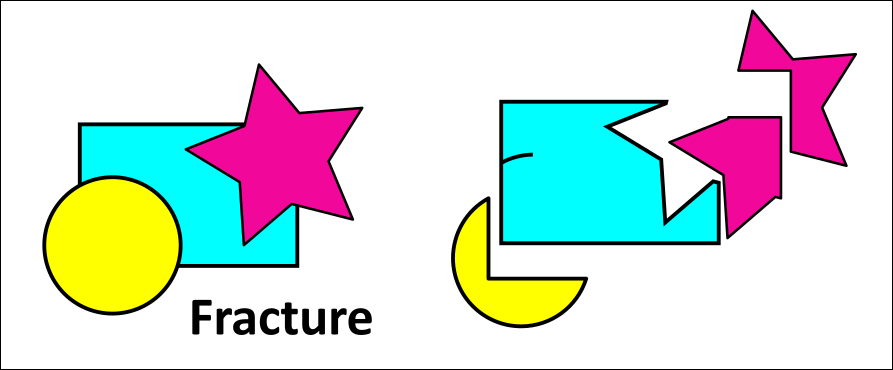 Going back to our pie, you can do the whole thing in one step, rather than using combine and division. Draw your circle and your lines, and select everything, then just use Fracture. My Inkscape must be weird, because when I did that I lost one piece of my pie. 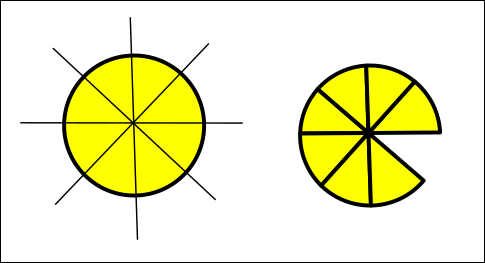 Flatten Flatten is interesting as well! Flatten divides everything, making lines and fill colors separate. 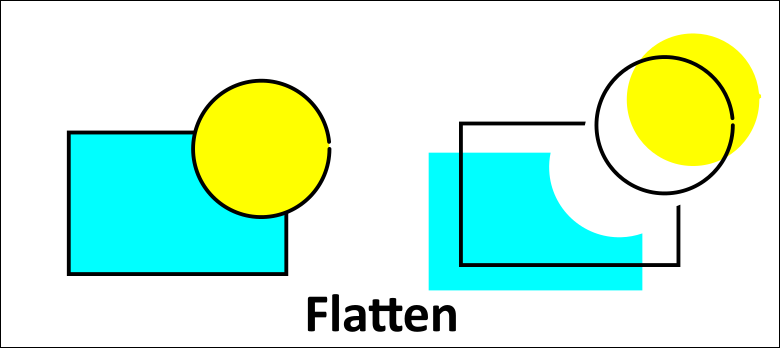 This could be useful if you were creating an object that had 2 or 3 objects, and you wanted to save them all but delete what’s under them. Flatten can retain the original objects where some other operations won’t. Here I created a square and a circle. I want to make a transparent area behind the circle and then resize the circle rather than getting rid of it. I used Flatten. 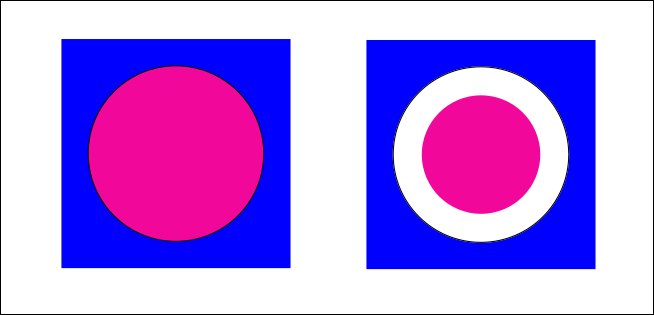 I hope you found some ideas to put to use that will make Inkscape easier for you! I had help from a video from Sweater Cat. |