| Previous Page |
PCLinuxOS Magazine |
PCLinuxOS |
Article List |
Disclaimer |
Next Page |
Tip Top Tips: Find Exact Install Date & KDE6 Simple Tips |
|
Editor’s Note: Tip Top Tips is a semi-monthly column in The PCLinuxOS Magazine. Periodically, we will feature – and possibly even expand upon – one tip from the PCLinuxOS forum. The magazine will not accept independent tip submissions specifically intended for inclusion in the Tip Top Tips column. Rather, if you have a tip, share it in the PCLinuxOS forum’s “Tips & Tricks” section. Occasionally, we may run a “tip” posted elsewhere in the PCLinuxOS forum. Either way, share your tip in the forum, and it just may be selected for publication in The PCLinuxOS Magazine. This month, we have not one, but two, tips from the PCLinuxOS forum. Our first tip is from Ramchu, and will list the exact date and time of the installation of PCLinuxOS on your computer. To find the exact date of your installation in a terminal run stat -c %w /. [me@localhost ~]$ stat -c %w / 2025-08-03 12:46:00.000000000 -0500 As you can see, August 3, 2025, was the date I installed onto my, at the time, new computer.
********************
Our second tip is from kalwisti, and lists some simple KDE 6 customization tips he has collected (he thanks the person he got the tip from at the end of each of the three tips he lists). He originally posted a “teaser” of this tip in the PCLinuxOS forum, and linked his PDF document for a full explanation. We've reprinted the entire PDF of his tip here. I sometimes have trouble remembering how to configure certain things in KDE Plasma 6, so I prepared this cheat sheet for myself. I decided to share it here, in case it might be helpful for other users. I’ve added screenshots and links to the original posts in the PCLinuxOS Forum (since they are scattered in different places).
Right-click on an empty part of your desktop. Click on the Desktop and Wallpaper option: 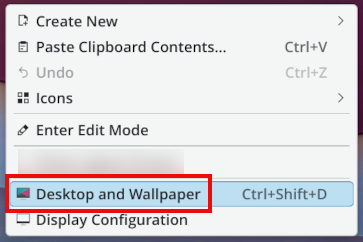 A dialog window will open. In its left pane, click on the Mouse Actions option. In the line entry for Right-Button, click on the Configure button. 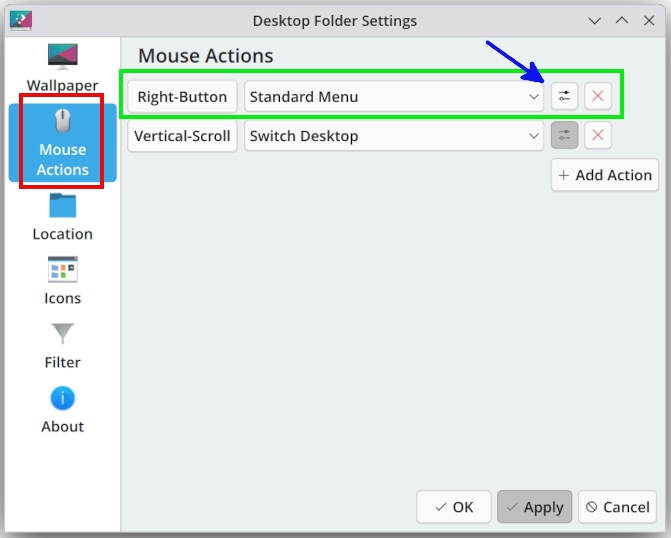 A new dialog window will open. Look for the Show Logout Screen option and click to place a checkmark/tick beside it. 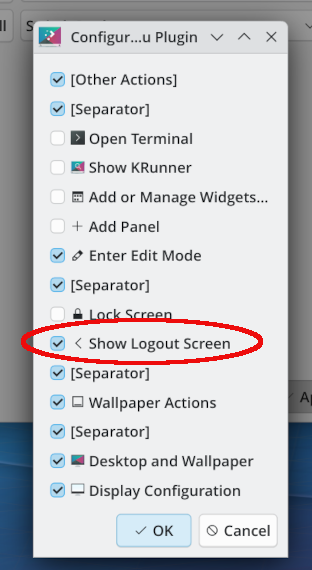 Click the OK button to close the dialog window. Click the OK button to close the parent window. After completing this procedure, the Show Logout Screen entry will appear when you right-click on your desktop. 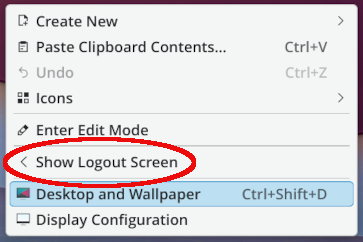 Thanks to Just19 for this tip.
If your Plasma 6 panel is cluttered with too many widgets (as shown below), you can remove unwanted widgets from the system tray.  Right-click on the panel. Click on Show Panel Configuration. 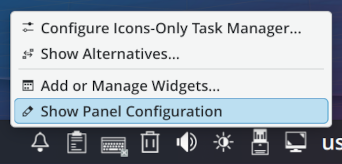 You will see something like the screenshot below. 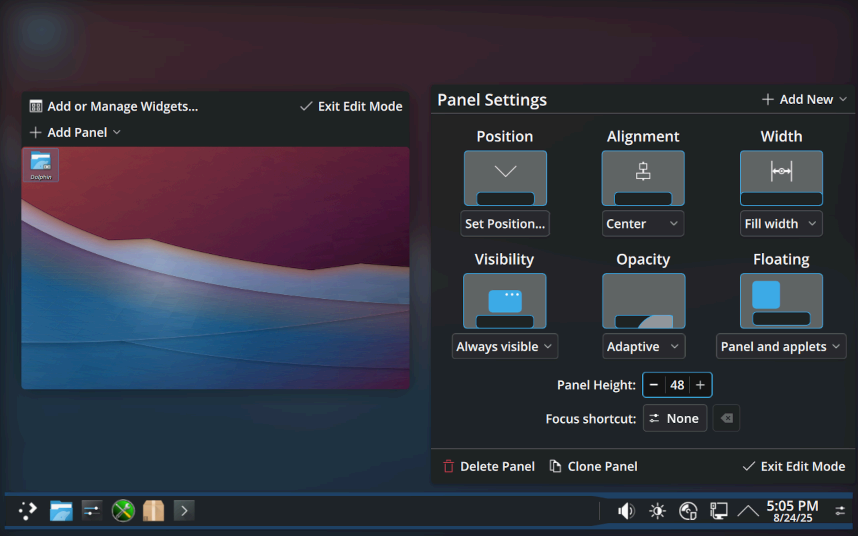 Move your mouse and hover over the system tray. You will see a popup menu labeled System Tray. 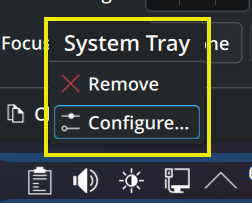 Click on this menu’s Configure option. A new dialog window will open. 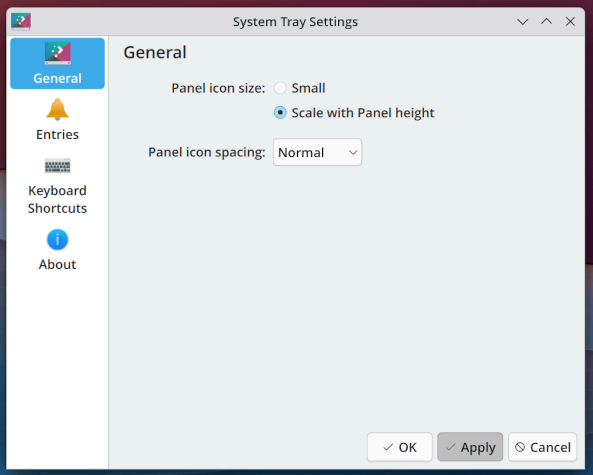 In its left pane, click on the Entries option [with the Bell icon]. At the bottom of that window’s right pane, uncheck/untick the entry Always show all entries. 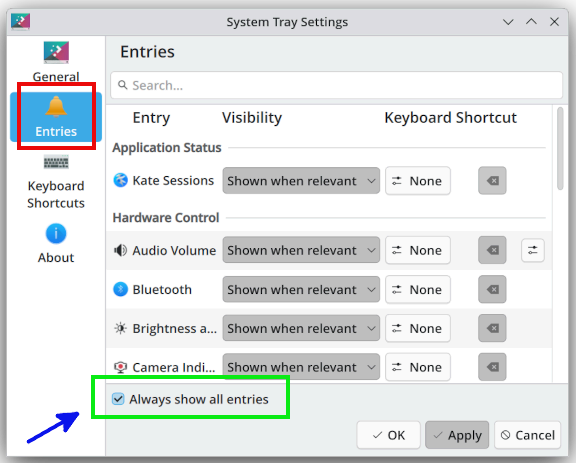 Click the Apply button. Next, set entries you don’t use at all to Disabled. Now, set all entries you use, but don’t want on the desktop when the function isn’t active, to Hidden. The screenshot below shows my system tray after I “pruned” unwanted widgets.  Thanks to kalwisti for this tip (originally posted in the old forum by Texstar and tbs).
If you would like to make your panel transparent, there is a cool widget developed by sanjay-kr-xo that you can install. Here’s how to do it. Right-click on the panel and select Add or Manage Widgets. 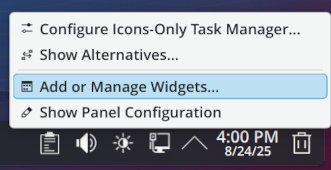 Click on Get New, in the upper left corner of your screen. 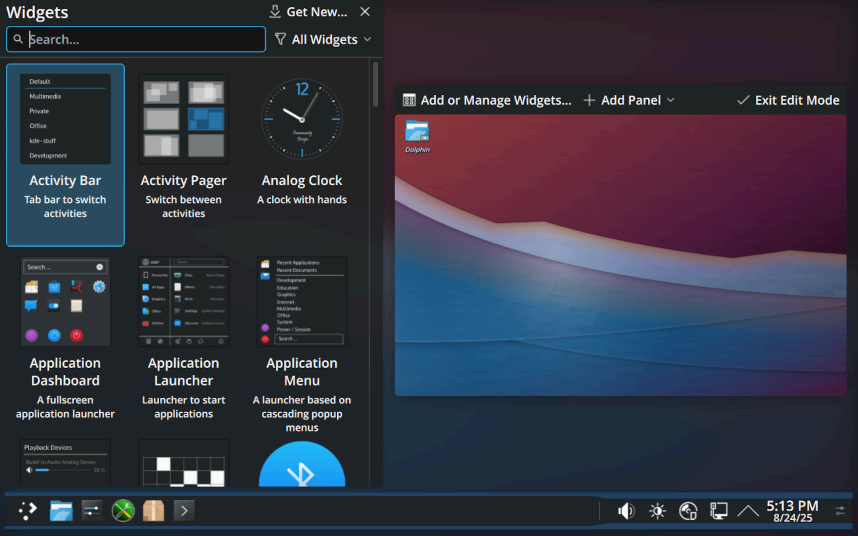 Next, click on Download New Plasma Widgets. In the Search box, type “transparency” and hit Enter. 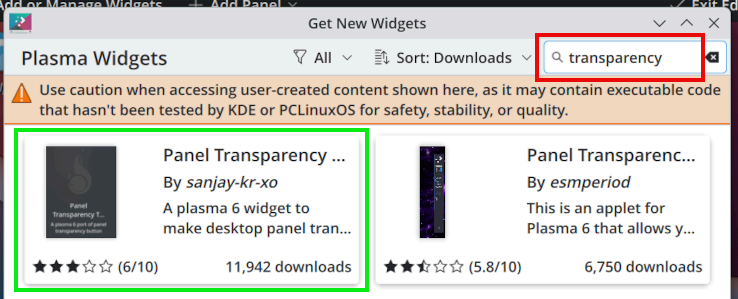 The widget you want is called “Panel Transparency Toggle” by sanjay-kr-xo (shown above). Hovering the mouse over that item will cause an Install button to appear. Next, click on the Install button. Click on the Exit Edit Mode to return to your normal Plasma workspace. Log out of your current session and back in, for the transparency change to take effect. Afterwards, if your panel is not transparent, follow these following steps. Right-click on the panel. Select Add or Manage Widgets. Find the Panel Transparency Toggle widget and click on it to activate transparency. Hint: In the Search box, you can type “transparency”. Or, in the Categories column, you can filter the widget listing by selecting Running. Click on Exit Edit Mode to finish. Thanks to kc1di for this tip. |