| Previous Page |
PCLinuxOS Magazine |
PCLinuxOS |
Article List |
Disclaimer |
Next Page |
Tip Top Tips: KDE 6.x.y Change Shutdown/Logout Countdown (Konsole Method) |
|
Editor’s Note: Tip Top Tips is a semi-monthly column in The PCLinuxOS Magazine. Periodically, we will feature – and possibly even expand upon – one tip from the PCLinuxOS forum. The magazine will not accept independent tip submissions specifically intended for inclusion in the Tip Top Tips column. Rather, if you have a tip, share it in the PCLinuxOS forum’s “Tips & Tricks” section. Occasionally, we may run a “tip” posted elsewhere in the PCLinuxOS forum. Either way, share your tip in the forum, and it just may be selected for publication in The PCLinuxOS Magazine. This month’s tip comes from keltonix.  You can change the shutdown/logout countdown timer for KDE 6.x.y using a couple different methods. The following method uses Konsole and the nano text editor: First, open a Konsole window, type su and press the Enter key. Enter your root password when prompted.
Then, type Next, type nano Logout.qml on the command line prompt. The preceding actions will open the file Logout.qml in the nano text editor, similar to the image below. 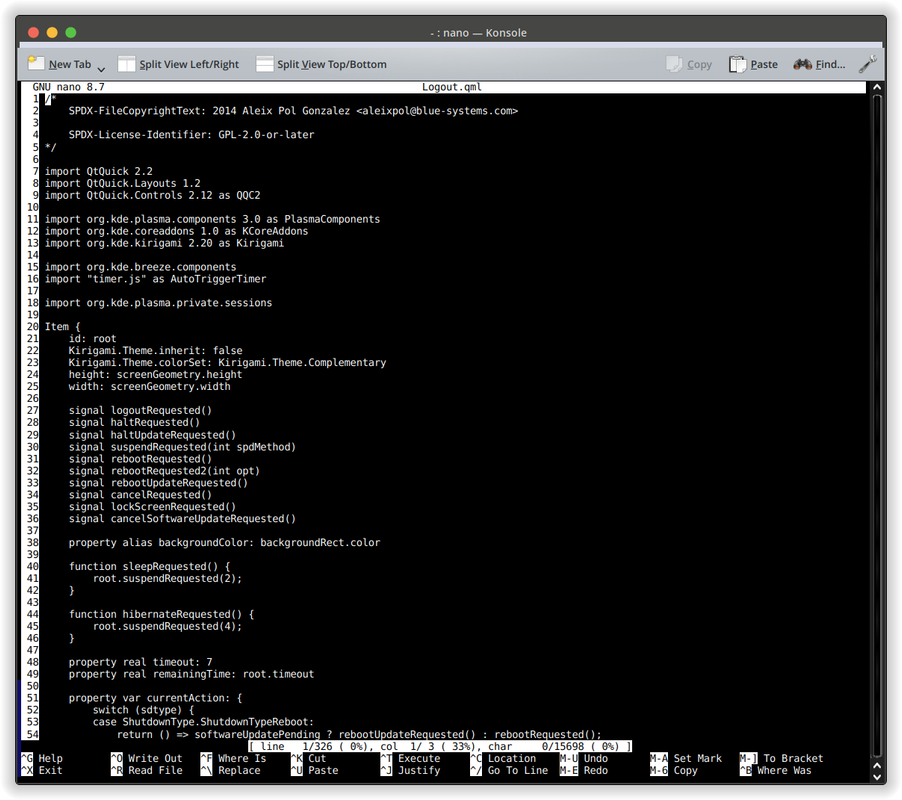 In the nano text editor, press the keyboard combination Ctrl+w. Type property real timeout, and press the Enter key. You will be magically taken to the line that reads property real timeout: 30. Change the 30 (which in this case refers to 30 seconds) to a length of time in seconds that you prefer, (e.g., 7). Press and release the keyboard combination, Ctrl+o, and press the Enter key. Then, press and release the keyboard combination Ctrl+x, and press the Enter key.
The preceding actions have edited the file Now you can type exit to exit the root user's profile in Konsole, and press the Enter key. Then, you can type exit to close the Konsole window, and press the Enter key. All done. Next time you shut down your computer, the new countdown timer setting will be in effect. Ramchu, in his reply, found a slightly different solution to the logout/shutdown delay. The instructions that you have posted are good information to know, but for myself, I just went to: System Settings> Session> Desktop Session> Ask for Conformation: unchecked On shutdown, restart, logout. Now I have no timer involved when I shutdown, restart or logout, it just does it. I have always found that second confirmation click to be annoying and needless as I have already made my decision. Has this caused me a few problems, the answer is yes, but nothing that I could not recover from. |