| Previous Page |
PCLinuxOS Magazine |
PCLinuxOS |
Article List |
Disclaimer |
Next Page |
Wiki Pick: How To Change Your Hostname In PCLinuxOS |
|
Applies to all versions of PCLinuxOS
Once installed you can run the program from the PCLOS menu, select Configuration and then click on Configure your hostname. 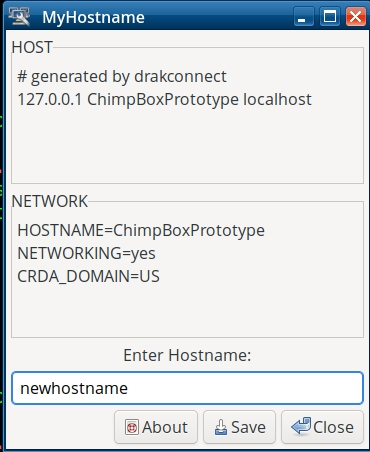 Now enter your new hostname in the Enter Hostname box and then click SAVE. Your changes will appear the next time your system is started.
Open a terminal window as the root user and then using nano (or your favorite text editor) enter:
You should see something similar to the following: 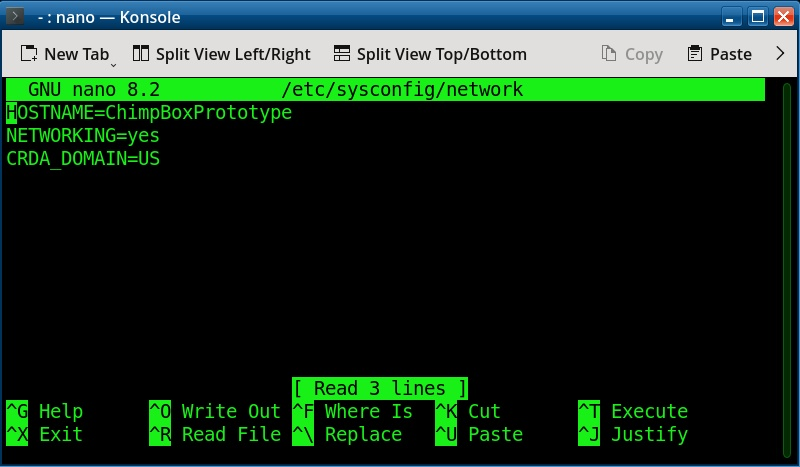 Now you can edit the HOSTNAME= to what ever name you would like. When you are done editing the file, simply press the <CTRL> and X at the same time to exit. It will then ask if you want to save modified buffer type in a y and press return, it will then display File Name to Write: /etc/sysconfig/network simply press the enter key once again. It will write the new data and return you to the main terminal window. You can now close the terminal window. Now, your new hostname will be displayed the next time you reboot or start your computer. You can view this PCLinuxOS Knowledgebase Wiki article here. |