| Previous Page |
PCLinuxOS Magazine |
PCLinuxOS |
Article List |
Disclaimer |
Next Page |
Wiki Pick: Automatically Mount A Drive Using /etc/fstab |
|
Relevant to all versions of PCLinuxOS
NOTE: All commands are executed as the root user in a terminal window. 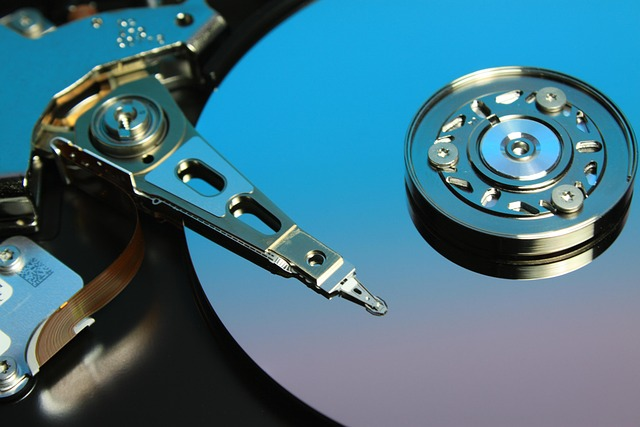 Image by MH Rhee from Pixabay Step 1: Find the UUID or device path Run the following command in a terminal window to get the UUID of the drive:
Look for the UUID of the partition you want to mount (e.g., “/dev/sda1”).
Decide where you want to mount the drive (e.g., “/mnt/mydrive”) and create that directory if it doesn't already exist:
1. Open the “/etc/fstab” file in a text editor with root privileges: nano /etc/fstab 2. Add a new line with the following format:
Replace <your-drive-uuid> with the UUID you found. Replace <filesystem-type> with the file system type (e.g., ext4, ntfs, vfat). <options> can be something like defaults or noatime. For NTFS, you might want ntfs-3g instead. Example:
You can test if the entry is correct by running:
If there are no errors, the drive should be mounted automatically at the specified mount point on the next reboot.
|