| Previous Page |
PCLinuxOS Magazine |
PCLinuxOS |
Article List |
Disclaimer |
Next Page |
Wiki Pick: Disk Space Checking |
|
Relevant to all versions of PCLinuxOS
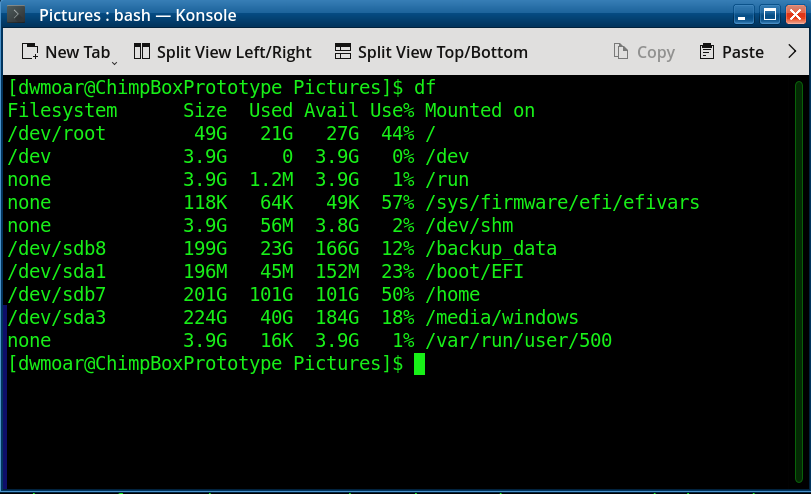
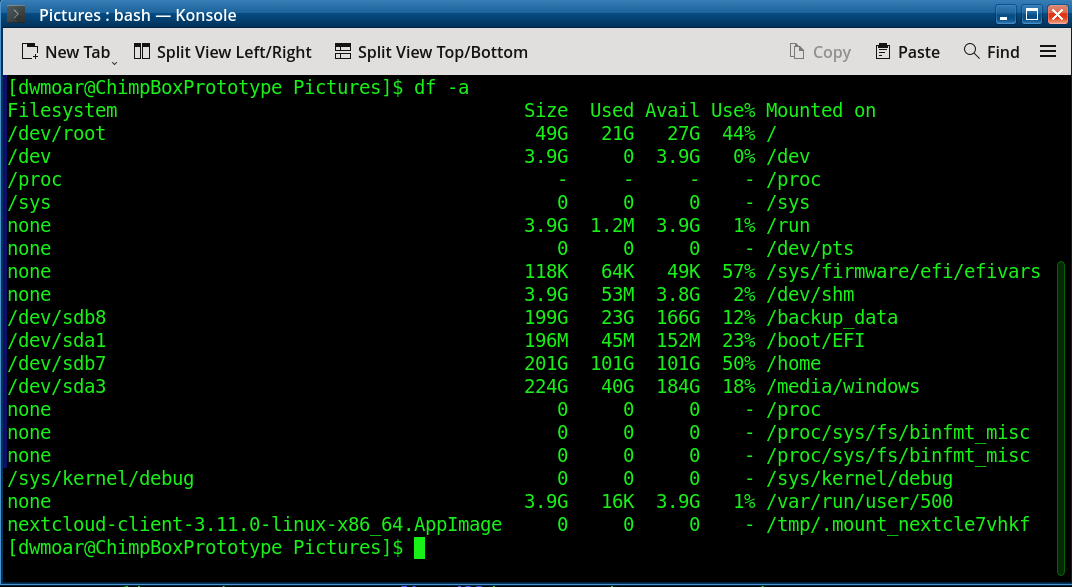
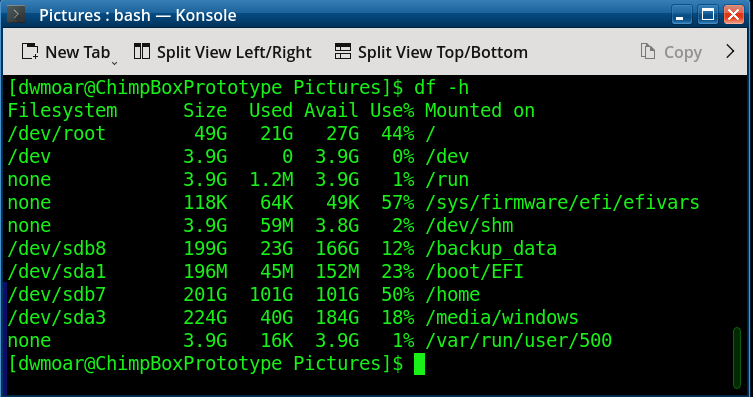
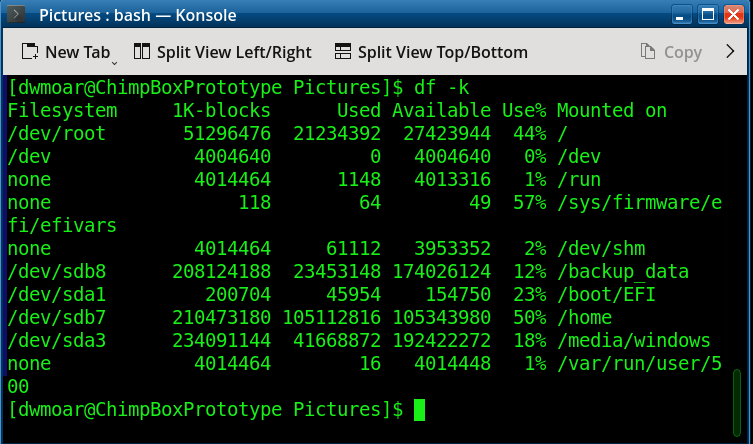
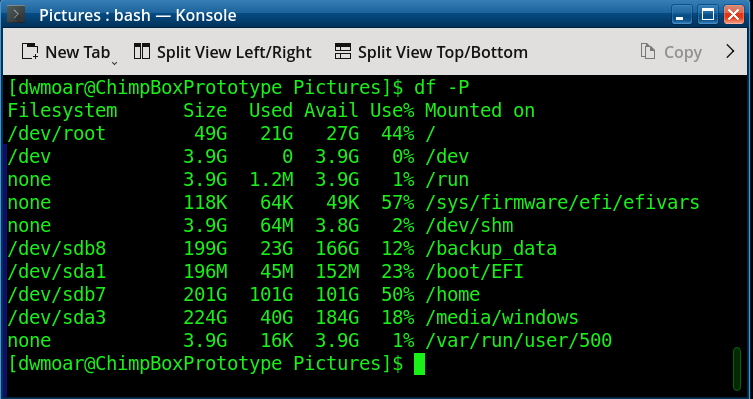
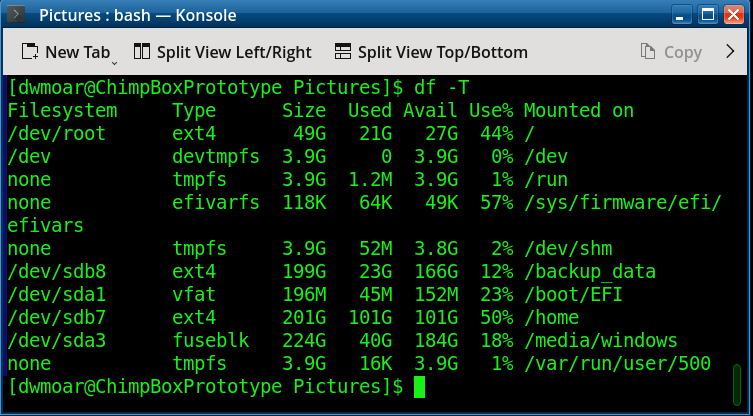
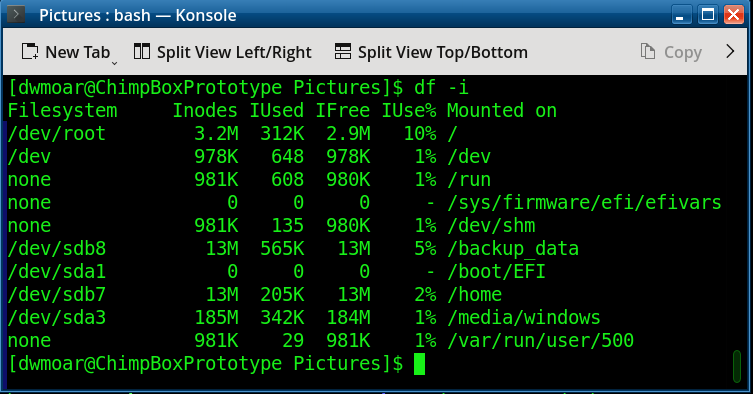
The easiest way to check your system's disk space is by using the df (disk free) command in a terminal window. The df utility shall write the amount of available space and file slots for file systems on which the invoking user has appropriate read access. File systems shall be specified by the file operands; when none are specified, information shall be written for all file systems. Syntax: df — report free disk space. Options: The following arguments shall be supported: -a include pseudo, duplicate, inaccessible file systems -h print sizes in power of 1024 (e.g., 1023M) -k Use 1024-byte units, instead of the default 512-byte units, when writing space figures. -P Produce output in the format described in the STDOUT section. -T print filesystem typedf -l -i list inode information instead of block usage Below are some examples of the df command with each argument used.
df
df -a
df -h
df -k
df -P
df -T
df -i
What is Filelight For those that prefer a graphical disk usage program. Filelight allows you to quickly understand exactly where your disk space is being used by graphically representing your file system as a set of concentric segmented-rings. You can use it to locate hotspots of disk usage and then manipulate those areas using Dolphin or Konqueror. You can find it in the menu -> File Tools -> Filelight. If you can not locate it there, you may need to be installed through synaptic package manager. Here is an example of my hard drive looking at my Nextcloud folder: 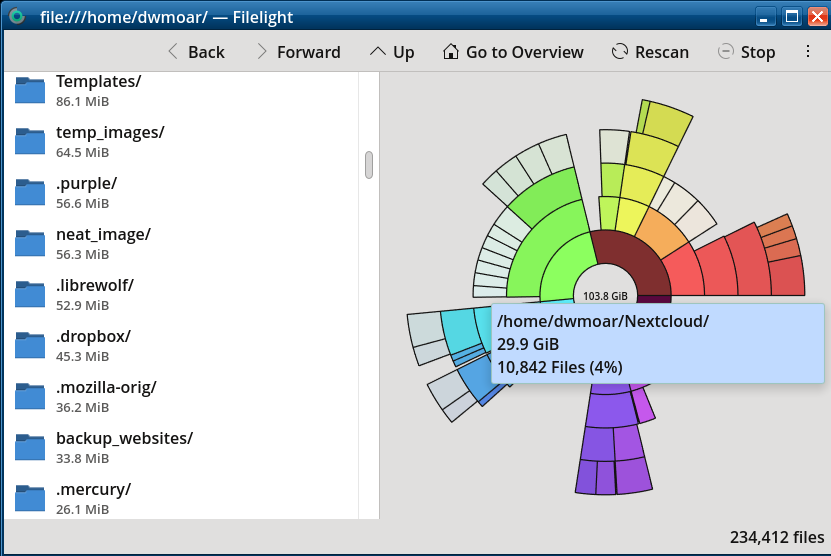 You can view the original PCLinuxOS Wiki Knowledgebase article here. |