| Previous Page |
PCLinuxOS Magazine |
PCLinuxOS |
Article List |
Disclaimer |
Next Page |
Recent Improvements to DNF Package Manager |
|
by David Pardue (kalwisti)
Version 1.14-2 of the DNF Package Manager was released in mid-February 2026. It included a new feature: the program will not freeze up if a repository is unavailable. If a repository is down when selecting a new one, the Available tab will display a notification. Thanks to this change, the GUI is still able to refresh and choose a repository that is working without the freeze. 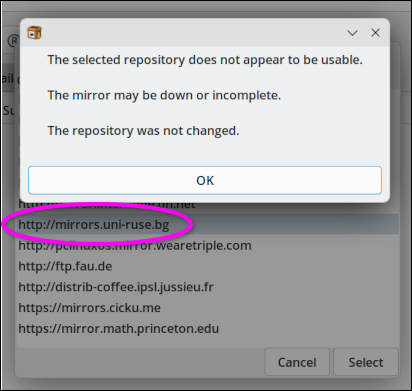 The screenshot above shows the notification I received when attempting to change my default repository to the Bulgarian PCLinuxOS mirror ("Angel Kanchev" University of Ruse). It was temporarily unavailable.
In version 1.14-3, the dialog window height was increased for easier reading and the dialog windows can now be resized if necessary. The screenshots below illustrate this new enhancement.
Highlight your desired package (Gnumeric in this example), then right-click. A small dialog with several options will appear: 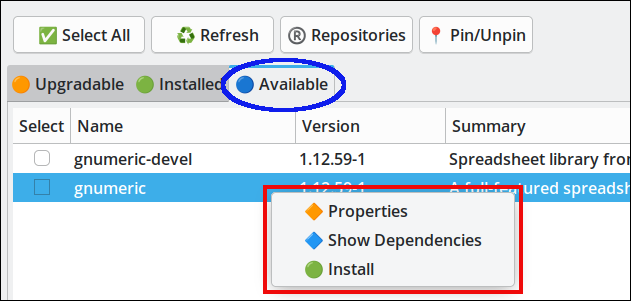 If you click on the Properties option, a new window will open. You can resize the window by using the handles at the edge of the window's border: 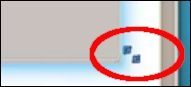
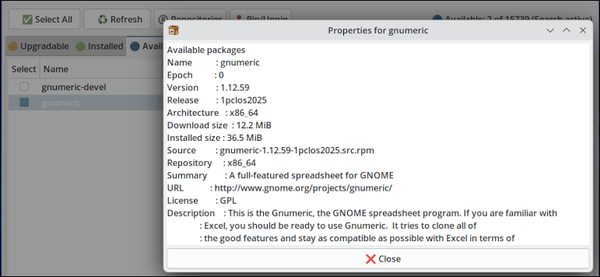 The screenshot above shows the Properties window after I resized it. Selecting the Show Dependencies option or the Install option will also open a resizable window.
Highlight the package that you wish to remove (Ted in this example), then right-click. A small dialog with several options will appear: 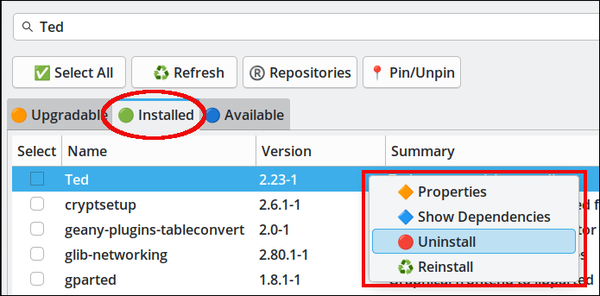 If you want to inspect Ted's dependencies before uninstalling the text processor, click on the Show Dependencies option. A new window will open, which you can resize by using the handles at the edge of the window's border: 
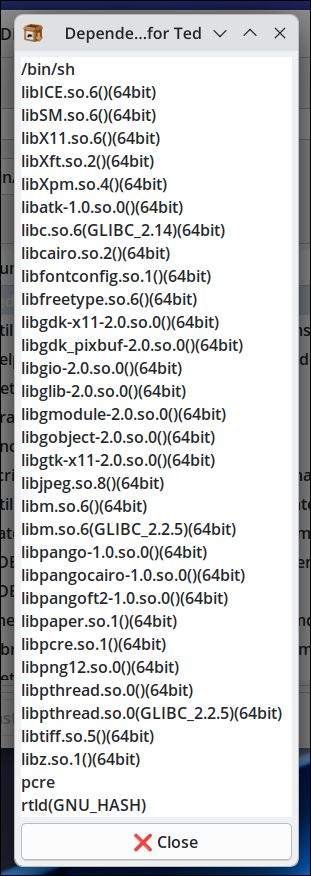 The screenshot above illustrates the Show Dependencies window after being resized. Selecting the Properties option or the Uninstall option will also open a resizable window.
Some PCLinuxOS users reported issues with removing packages via the DNF Package Manager GUI on non-English-language systems. Upgreyed fixed how the /usr/bin/dnf_launcher works in non-English locales when launched from the .desktop file, thereby allowing the GUI to work properly with languages other than English.
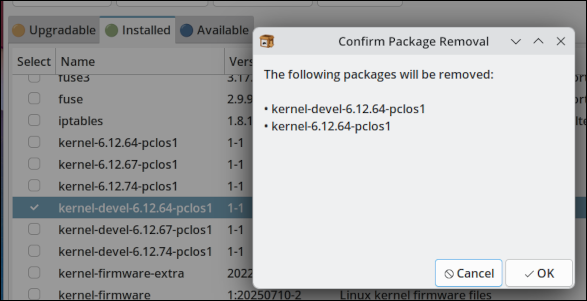
This is not a new feature, but I will mention it because it has confused some users. If you need to remove an older/outdated kernel from your system, DNF Package Manager requires you to remove the kernel-devel package first. (This differs from the equivalent procedure with Synaptic Package Manager.)
Note: The corresponding kernel package will be automatically removed along with the kernel-devel package that you selected for removal. 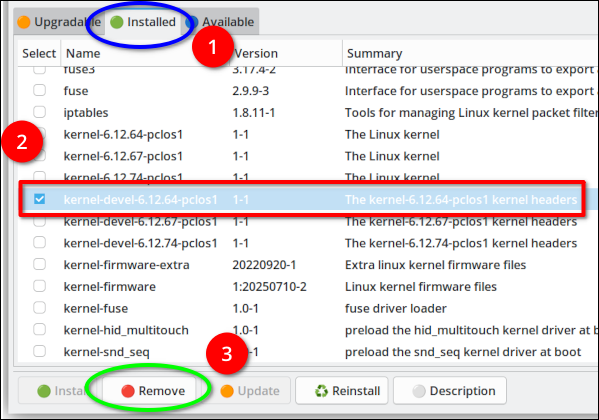
 Tip: If you have multiple kernel versions installed, it is generally considered good practice to retain two known working kernels. That way, if a newly installed kernel is not compatible with your hardware and will not boot, or is somehow problematic, you can fall back to the previous kernel. For more information on how PCLinuxOS handles kernels, please consult the PCLinuxOS KnowledgeBase.
I am grateful to Texstar and Upgreyed for continuing to improve DNF Package Manager; they have added features which they believe will be useful. Upgreyed mentioned that more add-ons could be incorporated at a later date — with Texstar's approval, of course. I have used DNF Package Manager exclusively for the past eight months; it has performed reliably, and I have confidence in it. Some recent forum posts by Texstar plainly state that PCLinuxOS's version of apt-rpm is obsolete, and that Synaptic is obsolete, as it is no longer maintained. Although he has not yet announced an official "sunset" date for Synaptic — and Synaptic is still working at the moment — it is unknown whether Synaptic will continue to work indefinitely. In my opinion, users who have not yet switched to DNF Package Manager would be prudent to begin familiarizing themselves with the application, before Synaptic is retired. PCLinuxOS favors GUI-based tools because it has always focused on ease of use. However, you may use DNF5 via the command line, if you wish. If you would like to explore some essential DNF5 commands, you can download my PDF guide (see Section 14, p. 15–22). Hunter recently posted a succinct explanation of the difference between "dnf upgrade" and "dnf distro-sync". |