| Previous Page |
PCLinuxOS Magazine |
PCLinuxOS |
Article List |
Disclaimer |
Next Page |
Two New Scripts To Temporarily Toggle Your OpenVPN Connection Off & On |
|
by Paul Arnote (parnote)
 Image by Gino Crescoli from Pixabay As far as I’m concerned, my ISP has no reasonable need to monitor or even see what I’m doing online. It’s not that I’m doing anything illegal, either. But, my ISP wants to use my online data for two primary reasons. First, my ISP wants to be my “nanny” to be sure I’m not doing anything illegal. I’ve made a career out of following the rules and the laws, some of them so onerous that it’s almost impossible to fully comply. So, I’m not “the one” you’re looking for. Second, my ISP wants to tailor advertising to my interests. No, thank you! I have to put up with enough of that from other service providers, so by eliminating my ISP from that group of busy-bodies is a welcomed relief. With my VPN, my ISP can’t be my “nanny.” All of the traffic between my computer and my VPN provider’s servers is encrypted, so all they see is traffic. But what they can’t see is where I’ve been, what I’ve done while at my destination, or anything else … just traffic. There are a LOT of ISPs that automatically think that if you’re downloading torrents, you’re automatically doing something illegal. Of course, that very “narrow-minded” view completely discounts the legitimate use of torrents (like, grabbing the latest release of PCLinuxOS). Certainly, there are plenty of people using torrents to circumvent laws and to download copyrighted content from the web, so I “kinda” get it. But not all torrents are involved with illegal activity. There are also a LOT of people using torrents to download FOSS programs. Torrents are a great way to distribute that FREE software. Plus, with your personal and private information (PPI) being the literal “currency” in recent times, I feel better knowing that information transferred online benefits from the encryption of all of the data leaving my computer. There’s no need to hand over my PPI to the Cretans on a silver or gold platter if I don’t have to (and I definitely don’t want to). So, that pretty much covers WHY I use a VPN. But, there are certain sites that refuse to work with your VPN activated. I’m looking at you, MLB.com and Netflix, among many others. That leaves me seeking an easier way to temporarily disable my VPN so that I can connect to those sites. And, once I’m done visiting the “offensive” site that doesn’t allow VPN connections, I’m looking for an equally easy way to re-activate my VPN. 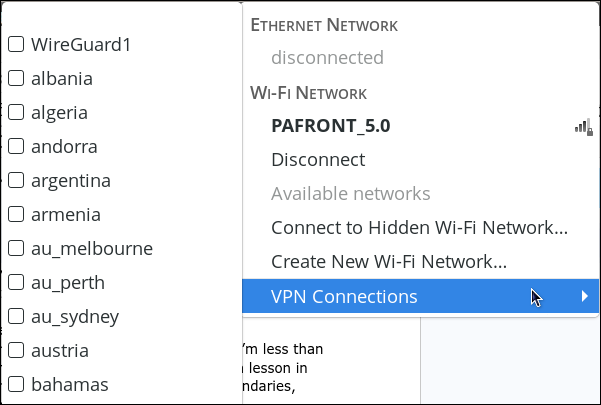 As much as I am absolutely, totally, 1000% ecstatic over PCLinuxOS’s switch to NetworkManager a few years ago, there is one aspect of NetworkManager that I’m less than happy about. Accessing the VPN menu to turn your VPN off or on is oftentimes a lesson in frustration. Let your mouse cursor stray even one pixel outside of the menu boundaries, and the menu disappears, forcing you to start all over. It becomes increasingly frustrating when the VPN server you want to connect to appears at the end of a very long list of VPN servers. That makes turning your VPN off or on an exercise in frustration. I figured there has to be an easier, less frustrating way to turn (or toggle) your VPN off or on. Thankfully, there is a way, thanks to the command line tools provided by NetworkManager. Before we get into discussing my solution(s) to toggle my VPN off or on, I do have to say that writing these scripts was challenging. I felt like I was pushing the boundaries of my bash scripting ability a bit farther than what I was comfortable doing. Of course, that’s how you “grow” your abilities, and I feel my bash scripting skills benefitted from that expansion.
My first script is called “Toggle VPN.” It has no formal “window.” Instead, it creates an icon that’s placed in the notification tray. Attached to that icon is a menu that’s activated by right–clicking on the icon in the notification tray. This script is the shortest of the two presented here. Even though it’s a bash script, there are GUI elements for the end user. So, you can place this script in your desktop environment’s “AutoStart” directory, or add it to the location where the autostart information is kept. You can, of course, download the script from the magazine server. The file name is “vpn-toggle.sh.txt,” and it’s only 2.0 KiB in size (so it should download in the blink of an eye). Of course, there’s nothing preventing you from typing it in from the listing of the script below, either. (Hint: if you’re serious about learning how to write bash scripts, typing the script in makes you slow down so you can better understand exactly how the commands work.) As I’ve mentioned before with other scripts that I’ve presented in the magazine, store the script in the directory where you normally save your bash scripts. Remove the “.txt” file extension, and make the file executable. Hopefully, the directory where you save your bash scripts is in your computer’s $PATH statement. If it is, all you then have to do is issue the script name (vpn-toggle.sh) to start the script. Otherwise, you will have to provide a full path to the script to run it. So, here’s the script for vpn-toggle. It’s a bit longer than usual, because I’m trying to get better about annotating my script with comments about what the various parts of the script do. The actual “functioning” part of the script is only 10 lines of bash code.
Line 1, of course, is the typical bash “she-bang” that gets things rolling. Lines 2 - 19 are comment lines, and should be self explanatory. In line 20 (commented out in the listing above), the “set -x” line is there to assist with debugging of the script when I was creating it. I left it in here, just in case you want (or have a need) to see the output in a terminal session. With line 23, we get the active VPN connection with the nmcli -g NAME,TYPE con show --active | grep vpn command, and store it as the ActiveVPN variable. The returned active VPN connection is not usable “as is,” so in line 26, we strip the “:vpn” part of the ActiveVPN variable, and store it as ActiveVPN2, to give us just the name of the active VPN connection, which we can use. 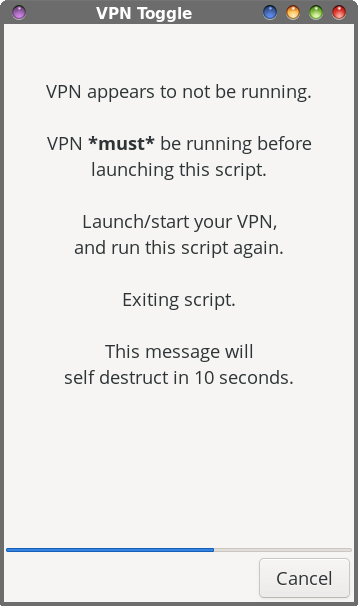 Lines 31 - 36 check to see if the VPN is running, and if not, it produces an error message (above). That error message tells the user to launch/start their VPN, and then to try the script again. That error message is presented to the end user in a yad dialog box that is set to “timeout” in 10 seconds, with a countdown indicator at the bottom of the dialog box that moves from right to left as the 10 seconds counts down. When the timer has counted down, the dialog box is automatically closed, and the script exits. So, your VPN **must** be running before launching the script. Otherwise, there’s no way to “store” the name of the active VPN connection in either variable, ActiveVPN and ActiveVPN2. The script doesn’t directly check to see if the VPN connection is active. Instead, it checks to see if $ActiveVPN2 is an empty string, which it would be if the VPN connection wasn’t present when the script was started, which is good enough. 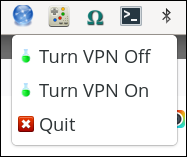 Lines 42 - 47 set up the menu in the notification area (shown above). After selecting the icon in the notification area with a right mouse click, select “Turn VPN Off” to toggle your VPN off, and “Turn VPN On” to toggle it on. Of course, selecting “Quit” from the menu causes the script to exit. Finally, line 50 causes the script to exit gracefully. If some of the bash code looks familiar, congratulations on having a sharp eye and/or a sharp memory. The menu creation code was “borrowed” from my game launcher script. That’s a really nice feature about writing bash scripts … you can reuse code from one script to another, with minor tweaks.
One potential “shortcoming” of the previous script (vpn-toggle) is that you might forget to turn your VPN back on, exposing your PPI to prying eyes. So, I came up with another script that turns your VPN off, and then turns it back on when the specified amount of time has elapsed. Just as with the previous script, you can also download this script from the magazine server (or you can type it in, if you like). And, just as with the previous script, store your script in the directory where you normally store your other bash scripts. Remove the “.txt” file extension, and make the script executable. The same advice applies about saving the script to a directory included in the $PATH statement of your computer. So, below is the script, which I’ve named “vpn-timed-toggle.sh.” Take a look at it, before we dissect it. Like with the previous script, it appears to be a little longer than normal, as I try to “improve” on annotating my scripts. But, the “business” part of this script is right around 30 lines of bash code (yes, a bit longer than the previous script), with the remainder being comment lines. Still, the entire script is only 3.3 KiB, so it should also download in the blink of an eye.
The typical bash “she-bang” starts things off in line 1. Comment lines fill up lines 2 - 18, and should be self-explanatory. In line 19 (which is commented out in the script listing above), the “set -x” command provides valuable feedback for debugging the script. If you want to see that output, simply uncomment the line by removing the “# ” from the beginning of the line. Line 22 calls on the nmcli -g NAME,TYPE con show --active | grep vpn command to fill the variable ActiveVPN with the name of the active VPN connection. However, we cannot use it as it’s presented ([name-of-vpn-connection]:vpn), so we strip the “:vpn” part of the active VPN connection name, and assign only the first part (the actual name) to the variable ActiveVPN2 in line 25. 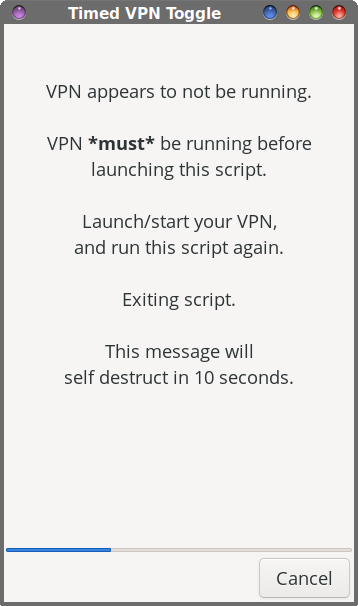 Lines 30 - 35 check to see if the VPN is running, and if not, it produces an error message (above). That error message tells the user to launch/start their VPN, and then to try the script again. That error message is presented to the end user in a yad dialog box that is set to “timeout” in 10 seconds, with a countdown indicator at the bottom of the dialog box that moves from right to left as the 10 seconds counts down. When the timer has counted down, the dialog box is automatically closed, and the script exits. So, your VPN **must** be running before launching the script. Otherwise, there’s no way to “store” the name of the active VPN connection in either variable, ActiveVPN and ActiveVPN2. The script doesn’t directly check to see if the VPN connection is active. Instead, it checks to see if $ActiveVPN2 is an empty string, which it would be if the VPN connection wasn’t present when the script was started, which is good enough. 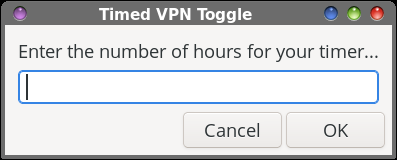
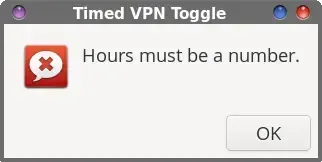
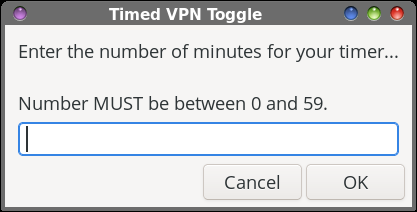
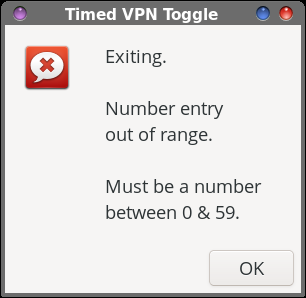 Lines 38 - 41 display a Zenity dialog box for the end user to enter the number of hours to pause the VPN. In line 43, we convert the number of hours to minutes. With lines 48 - 51, we have another Zenity dialog box for the end user to enter the number of minutes to pause the VPN. That number **must** be between 0 and 59, or an error message will be displayed (via another Zenity dialog box), and the script will exit. In line 59, we add the number of minutes entered into the “minutes” dialog box to the hours converted to minutes to get the total time (in minutes) to pause the VPN. We need to format the text displayed by the notification that pops up, so line 62 takes care of that for us. Line 66 turns the currently active VPN off, while line 67 displays the notification. With lines 71 - 75, we set up a very effective timer. With it, the “while … do” loop continues to run for as long as the $TIME variable remains greater than zero. With each pass through the “while … do” loop, the script “sleeps” for 60 seconds, and the $TIME variable is decreased by one. Once the timer reaches zero, line 80 restarts the previously active VPN connection, and line 81 pops up a notification that the previous VPN connection has been restored. Finally, line 84 allows the script to exit cleanly when it’s finished. If you’ve been paying attention, I’ve reused some bash code with this script, as well. The timer portion of the script was “borrowed” from my earlier script that turns off xscreensaver for a specified amount of time. Other aspects of this script are “borrowed” from the vpn-toggle script at the beginning of this article. Reusing bash code that has been proven to work and to be reliable helps “fast track” bash script creation, and that certainly worked well in this case. If you only want or need to pause your VPN connection for just a few minutes, feel free to enter “0” for the hours, and then the number of minutes in the “minutes” dialog box. At the end of that few minutes, your VPN connection will be restored. The nice thing about the vpn-timed-toggle script is that you don’t have to worry about restarting your VPN connection, since the script will restore it for you automatically.
Between the two scripts presented here, the shorter “vpn-toggle” script was the most difficult one to write. First, I was treading where I had never trod before. Second, the documentation for yad isn’t the best, so it took some time to figure out the proper formatting for the menu so that the commands were executed properly. And, honestly, I’m much more familiar with Zenity than I am with yad. Once I had the “vpn-toggle” script completed, creating the “vpn-timed-toggle” script only took a few minutes. In fact, it ran perfectly the first time I tried it. I’ve been running these scripts (mostly the “vpn-toggle” version) since late March, and they have yet to fail me. They dutifully pause my VPN connection when asked, and restore my VPN connection when asked. That is, ultimately, what I was after. Now, “pausing” my VPN and getting it restored is a very simple matter of a handful of mouse clicks, all without having to navigate the messy and inconvenient menu in NetworkManager. |