|
Editor’s Note: Tip Top Tips is a semi-monthly column in The PCLinuxOS Magazine. Periodically, we will feature – and possibly even expand upon – one tip from the PCLinuxOS forum. The magazine will not accept independent tip submissions specifically intended for inclusion in the Tip Top Tips column. Rather, if you have a tip, share it in the PCLinuxOS forum’s “Tips & Tricks” section. Occasionally, we may run a “tip” posted elsewhere in the PCLinuxOS forum. Either way, share your tip in the forum, and it just may be selected for publication in The PCLinuxOS Magazine.
Editor’s Note #2: WARNING! Use this tip with extreme caution! You MUST follow directions explicitly as given. There is a big risk of borking your installation if things are not done correctly. This tip is aimed more at experienced users who are comfortable with tinkering with their system at this level. If you have ever borked your system by not explicitly following the directions provided, then this tip is most likely NOT for you! In either case, it might be a good idea to have timeshift running, so that you can roll back to a working version of your system should things not go as anticipated.
This month’s tip is from MBL.
CPU: Ryzen 5 5600H
GPU: RTX 3060 NVIDIA Laptop
The FN + Q keyboard shortcut allows you to manage this (blue = silent, white = auto, red = performance).
Note: I disabled the “optimus/prime” option in the BIOS to be in full NVIDIA mode.
inxi -SMGC
System:
Host: 82ju Kernel: 6.12.74-pclos1 arch: x86_64 bits: 64
Desktop: KDE Plasma v: 6.6.1 Distro: PCLinuxOS 2026
Machine:
Type: Laptop System: LENOVO product: 82JU v: Legion 5 15ACH6H
serial: <superuser required>
Mobo: LENOVO model: LNVNB161216 v: NO DPK serial: <superuser required>
Firmware: UEFI vendor: LENOVO v: GKCN64WW date: 12/07/2023
CPU:
Info: 6-core model: AMD Ryzen 5 5600H with Radeon Graphics bits: 64
type: MT MCP cache: L2: 3 MiB
Speed (MHz): avg: 2750 min/max: 400/4280 cores: 1: 2750 2: 2750 3: 2750
4: 2750 5: 2750 6: 2750 7: 2750 8: 2750 9: 2750 10: 2750 11: 2750 12: 2750
Graphics:
Device-1: NVIDIA GA106M [GeForce RTX 3060 Mobile / Max-Q] driver: nvidia
v: 550.163.01
Display: x11 server: X.org v: 1.21.1.21 with: Xwayland v: 24.1.9 driver:
X: loaded: nvidia,v4l gpu: nvidia,nvidia-nvswitch resolution: 1: N/A 2: N/A
API: OpenGL v: 4.6.0 vendor: nvidia v: 550.163.01 renderer: NVIDIA
GeForce RTX 3060 Laptop GPU/PCIe/SSE2
API: Vulkan v: 1.4.321 drivers: nvidia,llvmpipe surfaces: N/A
API: EGL Message: EGL data requires eglinfo. Check --recommends.
Info: Tools: api: clinfo, glxinfo, vulkaninfo
de: kscreen-console,kscreen-doctor gpu: nvidia-settings,nvidia-smi
x11: xdpyinfo, xprop, xrandr
By default, my graphics card is locked at 80W. I unlocked the card so that it can now reach 130W max.
Technical background — what Dynamic Boost does
(https://download.nvidia.com/XFree86/Linux-x86_64/535.54.03/README/dynamicboost.html)
According to the official Nvidia documentation:
Dynamic Boost is managed by an nvidia-powerd daemon that relies on systemd and D-Bus to coordinate CPU⇄GPU and increase GPU power when the CPU is not saturated.
Under normal conditions in Linux, without this service, cards like my RTX 3060 Laptop remain locked at the base TGP (~80 W), whereas with Dynamic Boost they can reach up to ~130 W.
Specific limitations in PCLinuxOS
PCLinuxOS does not use systemd, so nvidia-powerd.service does not exist and cannot be enabled. Thus, the standard documentation does not apply as is. The absence of systemd means that standard Nvidia dynamic management cannot be used.
Step 1. Check GPU compatibility
First and foremost, you need to make sure that your laptop supports Dynamic Boost:
1) Check Dynamic Boost support via nvidia-settings:
nvidia-settings -q DynamicBoostSupport
Attribute ‘DynamicBoostSupport’ (82ju:0[gpu:0]): 1.
'DynamicBoostSupport' is a boolean attribute; valid values are: 1 (on/true) and 0 (off/false).
‘DynamicBoostSupport’ is a read-only attribute.
‘DynamicBoostSupport’ can use the following target types: GPU.
1 = compatible
0 = not compatible, meaning it cannot be enabled.
2) Check the GPU power limits:
nvidia-smi -q | grep -E "Current Power Limit|Max Power Limit"
Current Power Limit : 80.00 W
Max Power Limit : 130.00 W
Current Power Limit : N/A
Max Power Limit : N/A
Current/Default Power Limit = 80 W
Max Power Limit: must be higher than current/default setting (e.g., 130 W).
If Max Power Limit = Default, then Dynamic Boost is impossible.
Step 2: Check the Nvidia driver
Drivers >= 550 block nvidia-smi -pl for laptops.
Dynamic Boost only works via nvidia-powerd from this version onwards.
On PCLinuxOS, the official .run package contains the binary, but the distro packages may exclude it.
Step 3: Install the prerequisites
cpufrequtils (optional, useful if you want to manage the CPU):
sudo dnf install cpufrequtils
Check that D-Bus is working:
ps aux | grep dbus-daemon
dbus-daemon --system must be running.
Step 4: Download the official Nvidia driver
1) Download driver 550.163.01 (corresponds to the version I have on PCLinuxOS):
wget https://download.nvidia.com/XFree86/Linux-x86_64/550.163.01/NVIDIA-Linux-x86_64-550.163.01.run
2) Make the downloaded .run executable:
chmod +x NVIDIA-Linux-x86_64-550.163.01.run
Step 5: Extract the contents of the .run file without installing and go to the folder.
sh NVIDIA-Linux-x86_64-550.163.01.run --extract-only
cd NVIDIA-Linux-x86_64-550.163.01
Step 6: Check for the presence of the nvidia-powerd binary
find . -name "nvidia-powerd"
./nvidia-powerd
If found, then this is perfect. If not, then this .run version does not support Dynamic Boost.
Step 7: Check for the presence of the D-Bus file
find . -name "*dbus*.conf"
./nvidia-dbus.conf
Expected file: nvidia-dbus.conf
Step 8: Copy the necessary files to the system
1) Copy the nvidia-powerd binary:
sudo cp ./nvidia-powerd /usr/bin/
sudo chmod +x /usr/bin/nvidia-powerd
2) Copy the D-Bus file:
sudo cp ./nvidia-dbus.conf /usr/share/dbus-1/system.d/
sudo chmod 644 /usr/share/dbus-1/system.d/nvidia-dbus.conf
Step 9: Manually launch nvidia-powerd for testing
sudo /usr/bin/nvidia-powerd --verbose
The logs should show that it is running without errors.
Check the power draw:
watch -n1 nvidia-smi
or launch nvtop if installed
nvtop
Launch a game/benchmark. Your power draw should exceed 80 W.
Step 10: Automate launch at boot (without systemd)
1) Modify /etc/rc.d/rc.local:
sudo nano /etc/rc.d/rc.local
Add to the end:
# Start Nvidia Dynamic Boost daemon
/usr/bin/nvidia-powerd &
2) Make rc.local executable:
sudo chmod +x /etc/rc.d/rc.local
3) Restart the machine.
4) Check after reboot:
ps aux | grep nvidia-powerd
root 3646 0.4 0.0 151828 3048 ? Sl 16:35 1:14 /usr/bin/nvidia-powerd
mbl 5852 0.0 0.0 32748 2196 pts/1 S+ 21:15 0:00 grep --color nvidia-powerd
or with the command nvidia-smi or nvtop.
Key points
systemd is not necessary, rc.local is sufficient to launch the daemon.
Dynamic Boost only works if:
DynamicBoostSupport = 1
Max Power Limit > Default Power Limit
D-Bus is functional and allows nvidia-powerd (.conf file present)
nvidia-smi -pl does not work with 550+ on laptops, this is normal.
There you go, my RTX 3060 card can now go up to a maximum of 130W.
Example FN + Q with red light
nvidia-smi -q | grep -E "Current Power Limit|Max Power Limit"
Current Power Limit : 130.00 W
Max Power Limit : 130.00 W
Current Power Limit : N/A
Max Power Limit : N/A
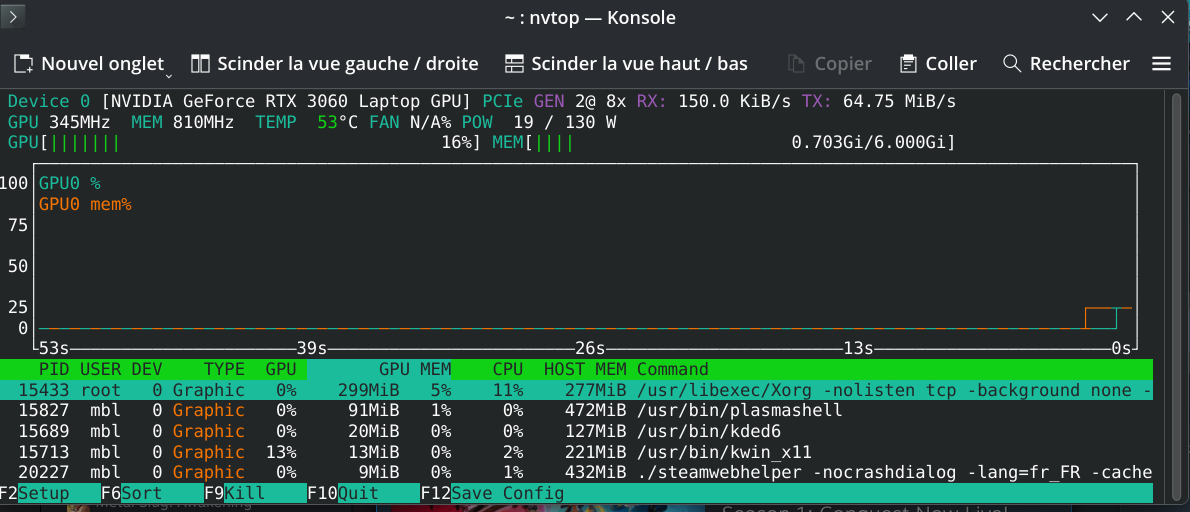
Or with nvtop:

The power range in AUTO mode: 80-95-115-130W
PS: there is also the cputhrottle program to manage your Intel/AMD CPU.
That's it, feel free to share your feedback on this topic.
I did this with the help of AI. I even have three scripts that it gave me to do it. I haven't tested these scripts yet, but I can post them here for verification and improvement.
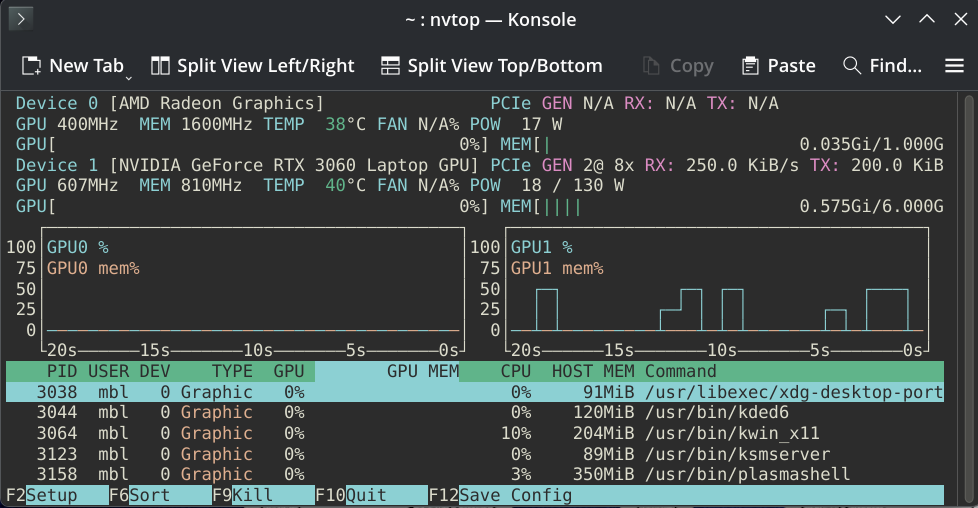
Does this also work with the “optimus/prime” mode like under PCLinuxOS? (gpu radeon + gpu nvidia)
I used the same process as the full NVIDIA version.
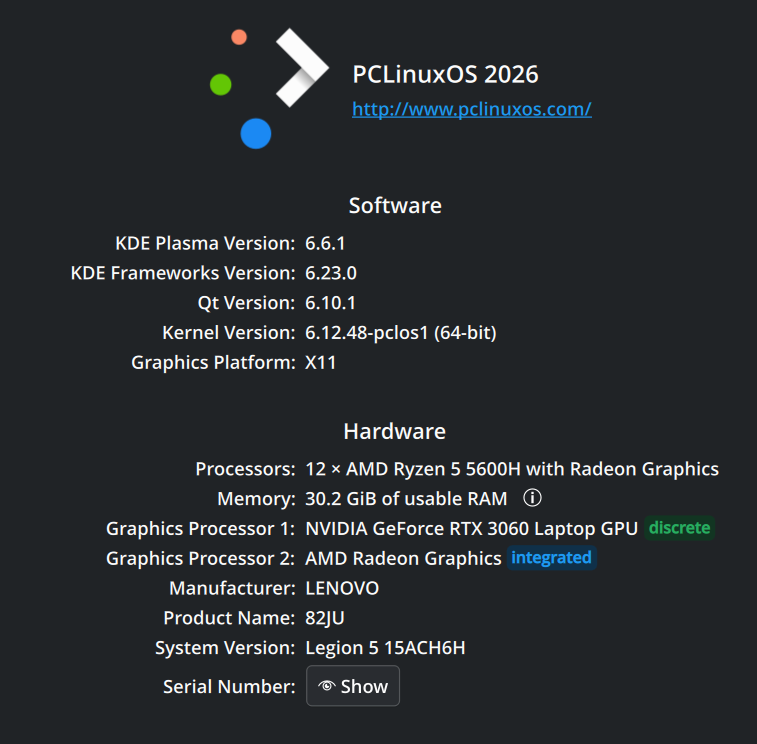
$ inxi -SMGC
System:
Host: L5 Kernel: 6.12.48-pclos1 arch: x86_64 bits: 64
Desktop: KDE Plasma v: 6.6.1 Distro: PCLinuxOS 2026
Machine:
Type: Laptop System: LENOVO product: 82JU v: Legion 5 15ACH6H
serial: <superuser required>
Mobo: LENOVO model: LNVNB161216 v: NO DPK serial: <superuser required>
Firmware: UEFI vendor: LENOVO v: GKCN64WW date: 12/07/2023
CPU:
Info: 6-core model: AMD Ryzen 5 5600H with Radeon Graphics bits: 64
type: MT MCP cache: L2: 3 MiB
Speed (MHz): avg: 400 min/max: 400/4280 cores: 1: 400 2: 400 3: 400 4: 400
5: 400 6: 400 7: 400 8: 400 9: 400 10: 400 11: 400 12: 400
Graphics:
Device-1: NVIDIA GA106M [GeForce RTX 3060 Mobile / Max-Q] driver: nvidia
v: 550.163.01
Device-2: Advanced Micro Devices [AMD/ATI] Cezanne [Radeon Vega Series /
Radeon Mobile Series] driver: amdgpu v: kernel
Display: x11 server: X.org v: 1.21.1.21 with: Xwayland v: 24.1.9 driver:
X: loaded: amdgpu,nvidia,v4l dri: radeonsi
gpu: amdgpu,nvidia,nvidia-nvswitch resolution: 1: N/A 2: N/A
API: OpenGL v: 4.6.0 vendor: nvidia v: 550.163.01 renderer: NVIDIA
GeForce RTX 3060 Laptop GPU/PCIe/SSE2
API: EGL Message: EGL data requires eglinfo. Check --recommends.
Info: Tools: api: clinfo,glxinfo de: kscreen-console,kscreen-doctor
gpu: nvidia-settings,nvidia-smi x11: xdpyinfo, xprop, xrandr

Yes it does! (130W also here)

|