| Previous Page |
PCLinuxOS Magazine |
PCLinuxOS |
Article List |
Disclaimer |
Next Page |
GIMP Tutorial: Create A Simple Logo |
|
by Meemaw  Yes, I know we’ve done a couple of logo tutorials this year, but they have both used Inkscape (one of them just last month). If you are more comfortable with GIMP, we can use it, too. I watched a tutorial from Logos by Nick for this one. I simplified it a tiny bit, but it works well anyway. Open GIMP and create a new project. Mine’s going to be square rather than rectangular, so I configured it as a square canvas measuring 1280 x 1280. Make sure it’s filled with Transparency. The first thing to do is add some guides to help square things up. Go to Image > Guides > New guide by percent. You want two – 50% horizontal and 50% vertical. 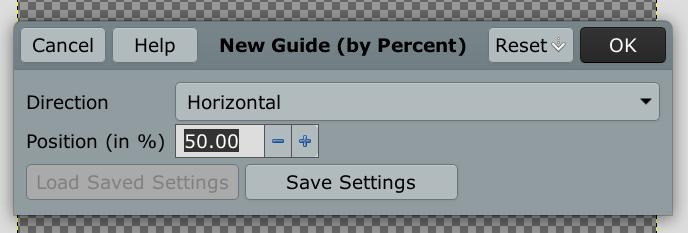
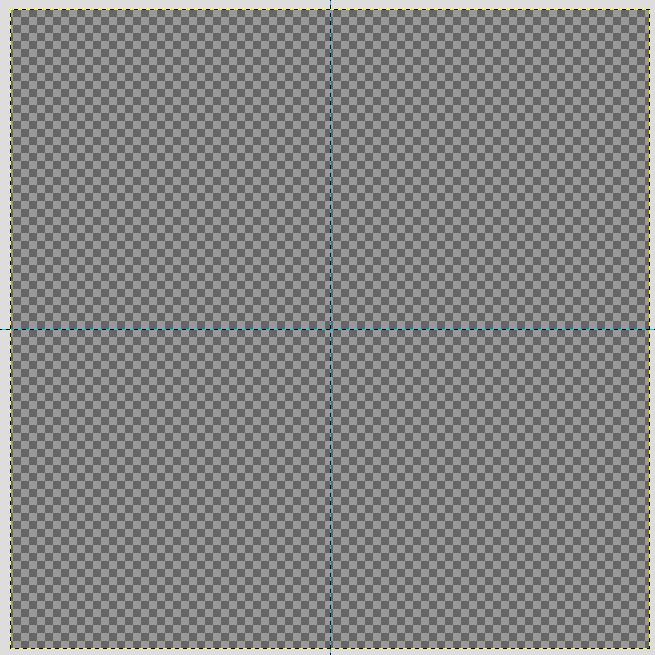 You can see them on the canvas. Also check View > Snap to guides. This should be checked by default, but make sure. Now we’ll put in our border. Start with the rectangle tool. Starting in the center of the canvas (where the guides cross), drag toward a corner, holding down <CTRL> + Shift to lock the square’s sides as all the same. 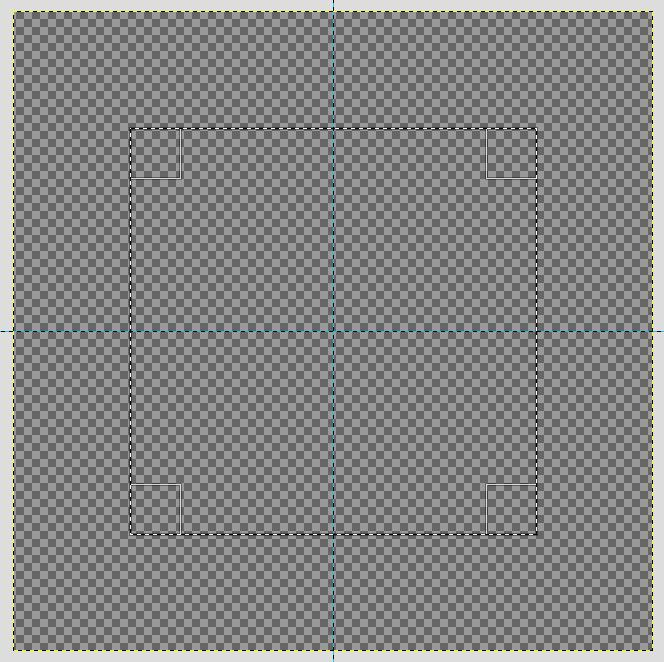 Next, Go to Edit > Fill with FG color. This will be a black & white logo, so I made sure my colors were the default black (FG) and white (BG). 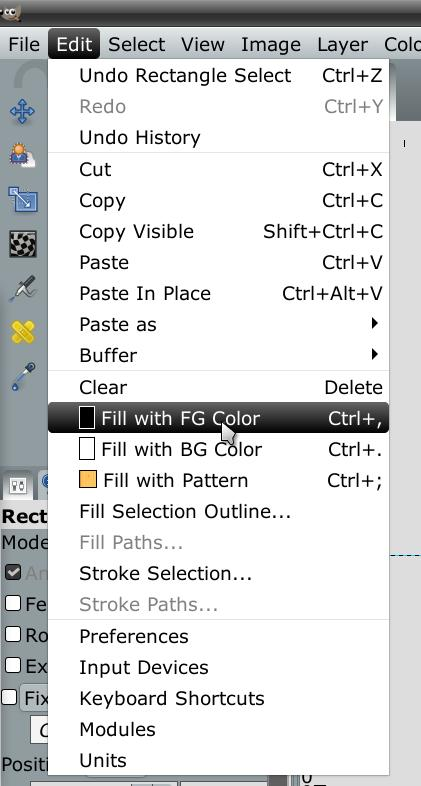 Now you need to go to Select > None. Now we’ll make another square on the same layer. This one needs to be a bit smaller than the first. Press the Delete key and you’ll get an outline. Choose Select > None again. 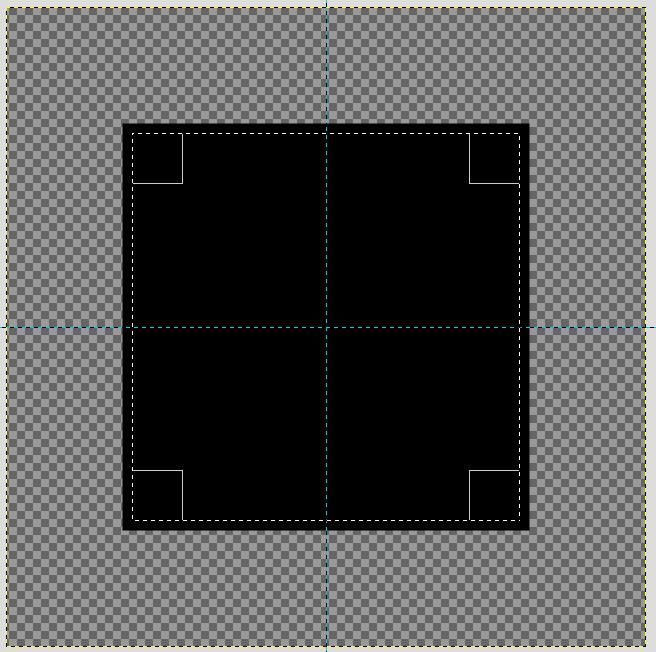 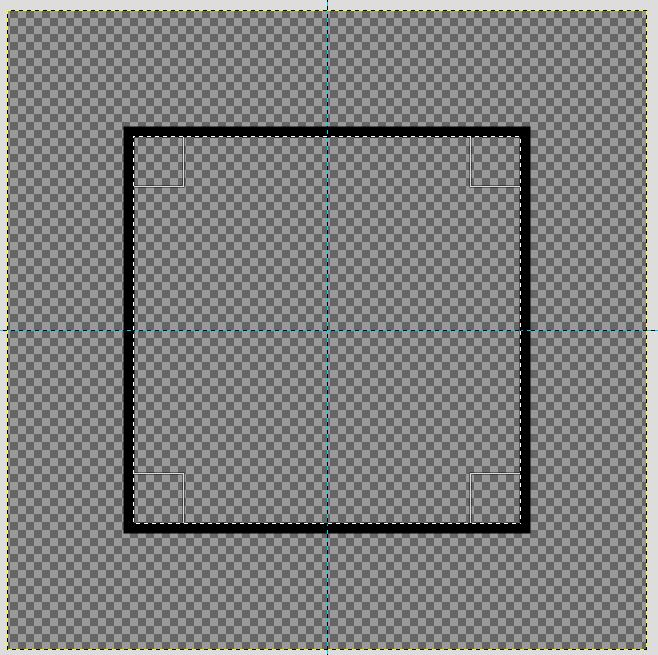 I decided to make another square. You can create another layer and follow the same steps as above, or you can just duplicate the layer in the layers dialog. I chose to duplicate the layer. Now I’m going to rotate the new layer 900 on the canvas. Open the rotate tool and rotate your square. 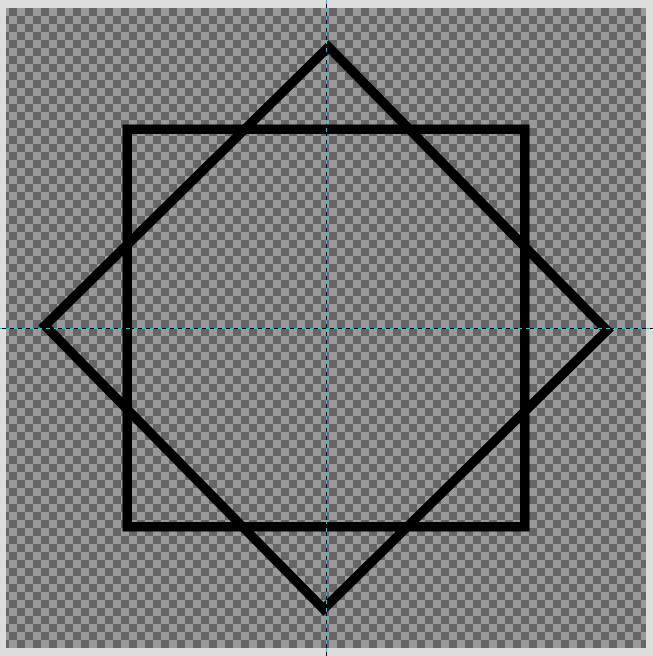 Now I want to make the squares look like they are intertwined. Zoom in, and choose the Eraser tool. We’re going to erase selected parts of each square. Some will be on one layer and the others will be on the other layer. Choose a layer and erase four parts of the lines intersecting the other layer’s square, then choose the other layer and do the same thing with the other four. Here’s my first step: 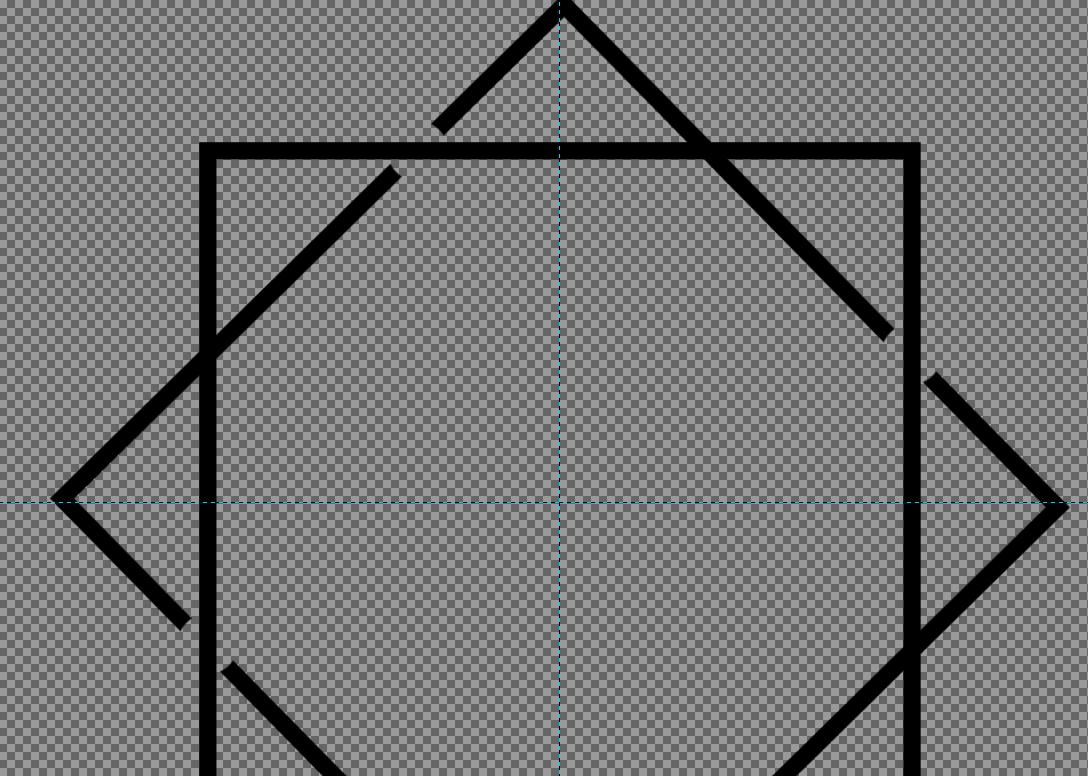 Notice that the ones erased are on corresponding sections of the square. Then I’ll choose the other layer and do the same with the other intersections, so it looks like this: 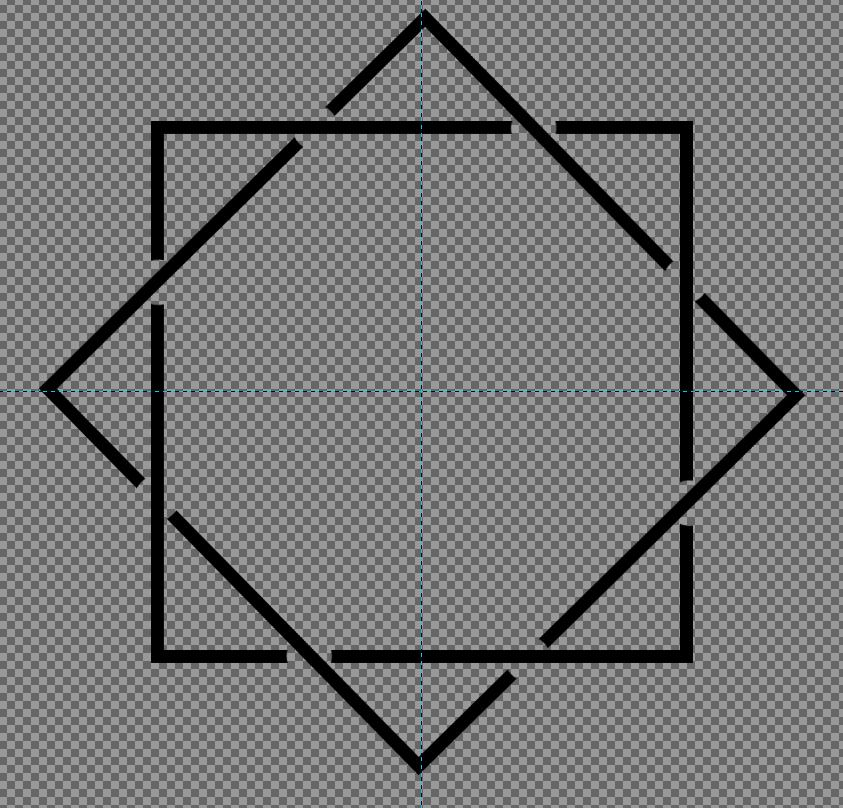 I’m going to add a circle inside this square arrangement. Create another transparent layer and use the ellipse tool, holding down <CTRL> + Shift to make it a perfect circle. Do the same steps as on the squares - fill with FG color - choose Select > None, then create another circle and press Delete. 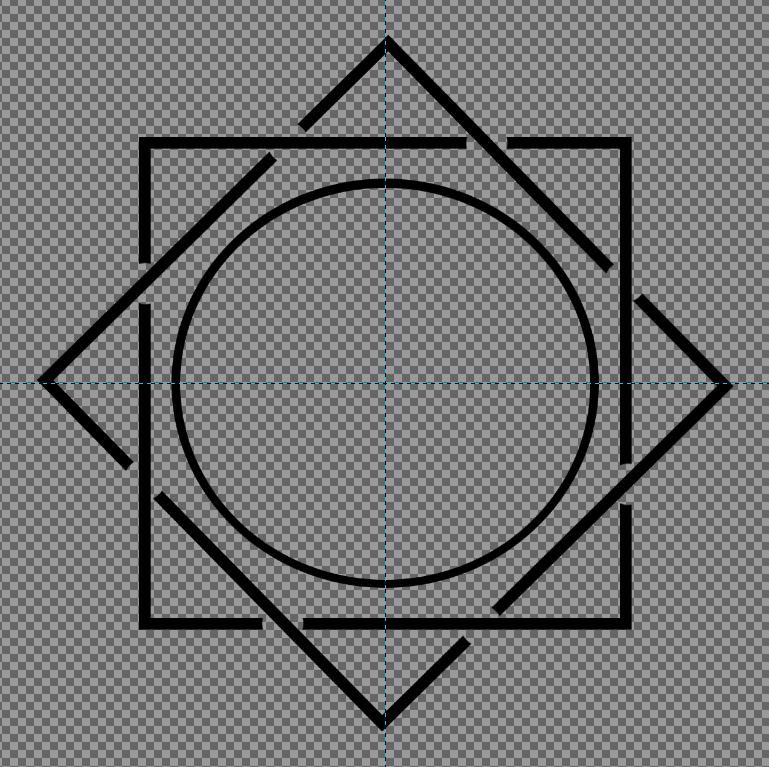 Now let’s add some text. I’m sure you know how to do this. Choose the text tool and select the font you want to use. I used Linux Libertine Bold, with the size at 220px. I just wrote “LOGO”, but you should use the word you need and in the size you want. For a smaller word, above LOGO I used the same font, but with a smaller size. You can use the Alignment tool to center your font where you want it. It should still snap to the guides. 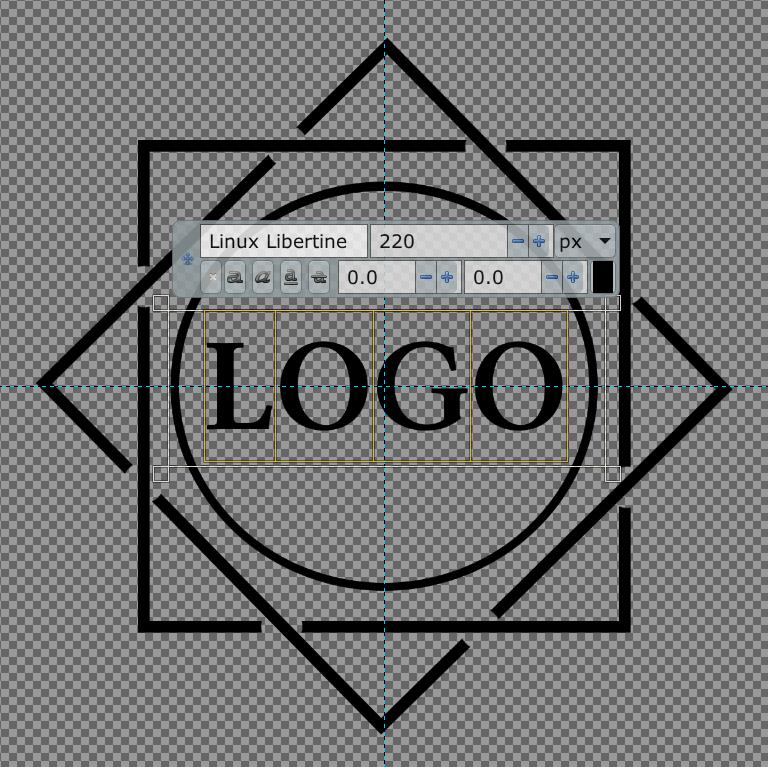 When you have what you want, you can export it to an image. Make sure you use an image format that supports image transparency. The last two also save images in significantly smaller file sizes. The one below is the result I got the second time. 
|