| Previous Page |
PCLinuxOS Magazine |
PCLinuxOS |
Article List |
Disclaimer |
Next Page |
Making Quality Music Easily and Cheaply on PCLinuxOS, Part 3 |
|
by Alessandro Ebersol (Agent Smith) 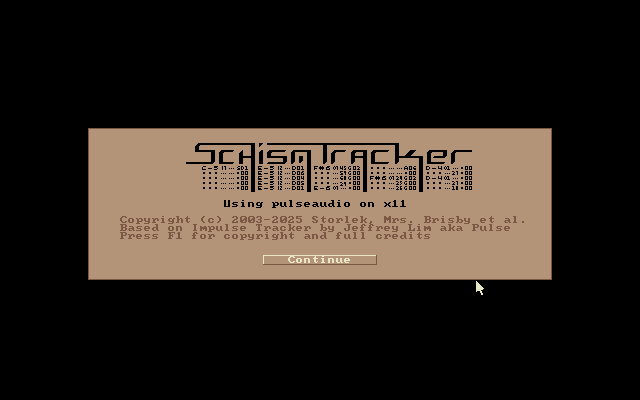 Continuing the series of articles about music making, I will discuss the first software here, Schism Tracker. Schismtracker is a music tracker module editor that aims to reproduce the look and feel of Impulse Tracker as faithfully as possible. It can load the most common tracker formats, supports saving in IT and S3M formats, and also allows exporting to WAV and AIFF.
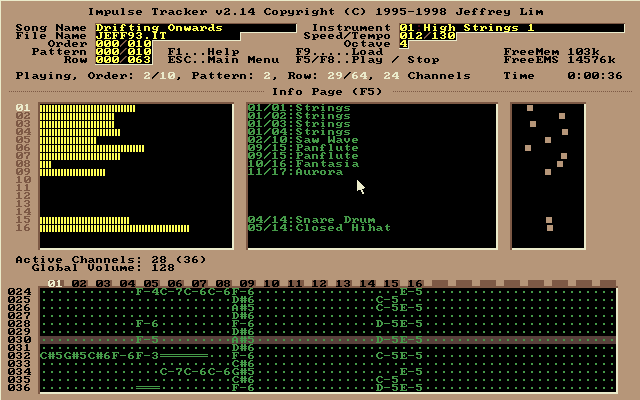 The Impulse Tracker (a.k.a. IT) was simply sensational. For its time, it was revolutionary: 64 channels, 99 samples, real stereo support on the Sound Blaster (instead of just full left and full right sound), music rendered in disk, and a host of other incredible features that made the Scream Tracker obsolete and also dealt a hard blow to the Fast Tracker. Of course, die-hard Fast Tracker 2 users didn't change their minds, because the Impulse Tracker had a completely different user interface... and what idiot would want to learn a completely new interface after having assimilated all the subtle nuances of the one they already knew? Unfortunately, since Impulse Tracker was written for MS-DOS — and, moreover, 100% in assembly language — over time it became increasingly difficult to make it work on newer computers and virtually impossible to use on non-Windows computers. Windows-based trackers gradually began to emerge (the best known being Modplug), and eventually some cross-platform trackers also appeared, but none of them had the same look and feel that die-hard IT fans had known and loved. Of course, they could switch to something else, but what madman would want to learn a completely new interface after having internalized all the subtle nuances of the one he already knew? Several projects were initiated to create clones of IT, the most notable being Cheesetracker. However, none of these programs aimed to offer the same user experience, lacked essential features such as a fully keyboard-controlled interface, or were generally unstable, and most were abandoned by their developers. The main goal of Schism Tracker is to fill this long-awaited gap.
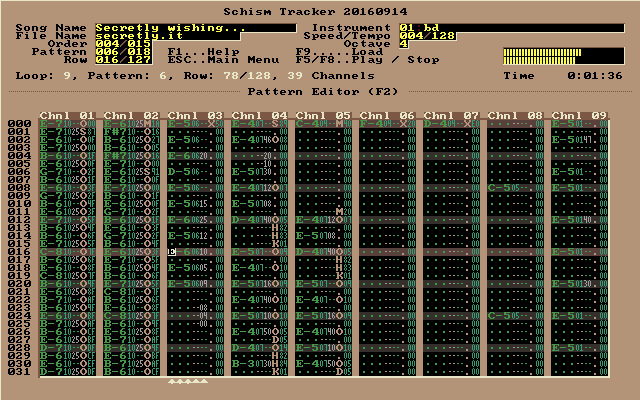 Impulse Tracker was a program used to create high-quality music without the need for specialized and expensive equipment. The hardware requirements were easily met: any IBM 386+ compatible computer (although a 486+ was recommended) and a VGA or higher video card. Unfortunately, Schism Tracker has somewhat less modest hardware requirements. This is partly due to the fact that Schism Tracker was written in portable C, but also to the various layers of abstraction (the host operating system, the emulated VGA video card). You will need at least a 166 MHz PowerPC or a 233 MHz x86 to achieve acceptable performance. Other architectures and platforms will have different requirements, as well as different definitions of “acceptable performance.” These are just guidelines. Schism Tracker was created by Storlek and Mrs. Brisby, using code from the Modplug player by Olivier Lapicque. The project is based on Impulse Tracker by Jeffrey Lim, as we saw above.
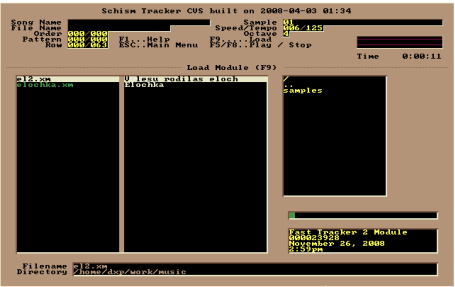 Schism Tracker simulates the VGA display in a specific VGA text mode that Impulse Tracker used when running on PC-DOS. Schism Tracker faithfully reproduces the Impulse Tracker user interface, including its pseudographic buttons and scroll bars. You can use the mouse to manipulate the user interface, but Schism Tracker, like Impulse Tracker, works best when operated with the keyboard. So, Schism Tracker will display the window above the first time it is run. So let's start getting to know the program and, at the same time, let's try creating a song, which will make it easier to understand the program and the process of creating music with modules in Schism Tracker.
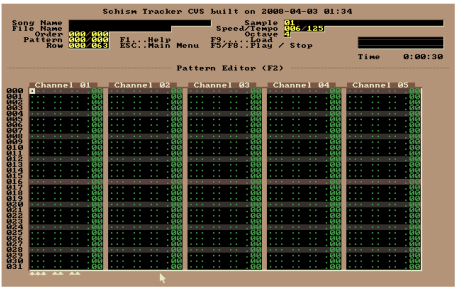 The initial window can confuse beginners: the program seemingly offers the option to load a file, even though you want to create a new one. In reality, the new empty project is already open. This is a very important detail that makes navigating the editor easier — all the windows needed for the work are opened using the function keys F1 to F12. For example, you can open the pattern editor by pressing the F2 key — this is where musicians spend most of their time. Since the project is empty, the pattern editor doesn't yet have any data. For example, if you press the Q key, the editor will add “C-5 01”. This roughly means: play the instrument note #1 with the parameters “C-5”. But when you try to play the melody, there will be no sound because there is no instrument. The tracker simply doesn't know how to play that note. It is necessary to provisionally create the instrument. Sample - a short excerpt of a digital instrument, voice, or other sound effects. Most trackers allow sample repetition, simulating a note through a prolonged sound. To view a list of samples in Schism Tracker, use the F3 key: 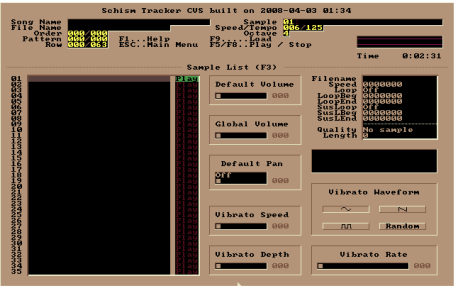 Schism Tracker does not have a library of samples or instruments. It is also not possible to create them within Schism Tracker. We need to import ready-made files, such as WAV files. These are easily found on search engines by searching for “music sample download”. Or you can use samples from any tracker that has its own sample library. For example, MadTracker. A simple set of MadTracker samples can be downloaded here. 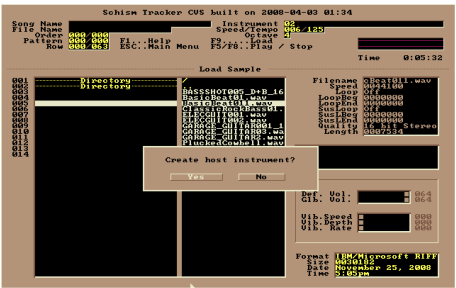 By default, all samples are inactive, and the “play” button appears in dark red. To load a sample from the file, simply press the Enter key and select the file. When adding a sample, Schism Tracker automatically asks if you want to create an instrument that corresponds to that sample. You should answer yes. After adding a sample to the instrument list (F4), the list looks something like this: 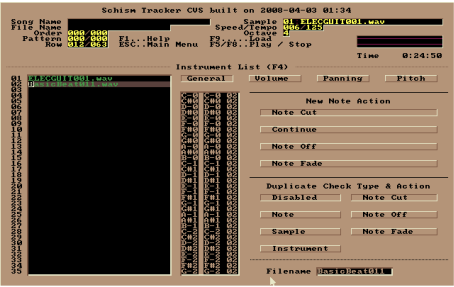 Now you can begin writing the melody itself. To do so, open the pattern editor (Press F2). 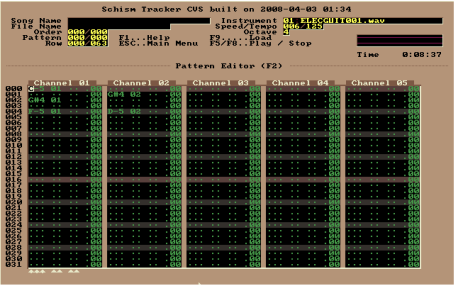 Notes played on the main keyboard. Try to understand everything! In fact, the uniqueness of the proposed sponsored tracker technique is that, with it, you can compose your music simply by listening to the sounds of an instrument and choosing the appropriate sound. For example, a popular Russian song, “The Swordfish Was Born in the Forest,” for Schism. Tracker could look something like this: 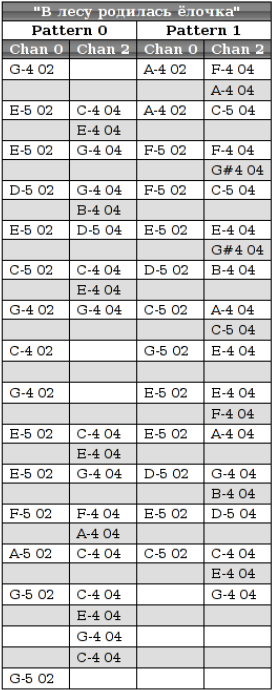 When working on the melody, make frequent use of keyboard shortcuts. The Ctrl + Backspace combination discards all changes to the composition (undo function), Alt + Backspace undoes the last change (undo function), and clicking + or - changes the current pattern. If you want to replace an incorrect music note, simply position the cursor over it and insert the correct music note. The current cursor position should be cleared using the Del key. The Del key not only clears the current position but also increases all values on the next line. Editor options can be accessed by pressing F2, and pattern options by pressing Ctrl + F2. Reproduce this pattern using the F6 key. 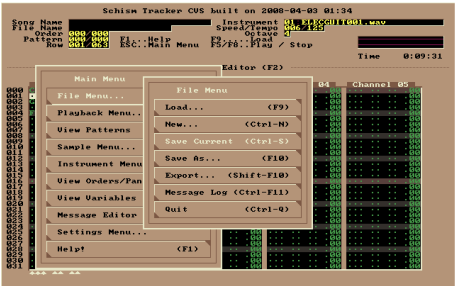 You can save the track via the main menu (Esc), selecting “File Menu” - “Save Current”. Or you can simply press F10. This will open a window similar to the one we saw at startup: 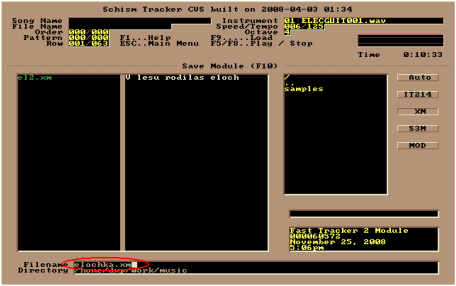 Here, you will need to enter a filename and select its type (Schism can select the type automatically). Next, you can select the music variables: the title, playback speed, tempo, and other details. The music variables window can be opened by pressing the F12 key. 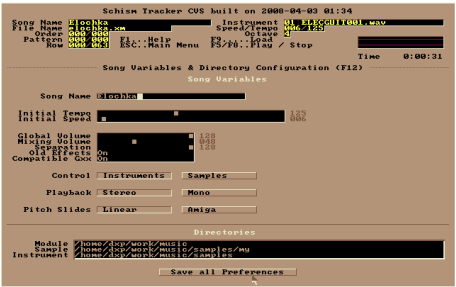 But even after the current action, our work doesn't play when we press the F5 key. This is because the composition can consist of several patterns, and the Tracker needs to know the order in which they should be played. The order can be set in the schedule list (F11). 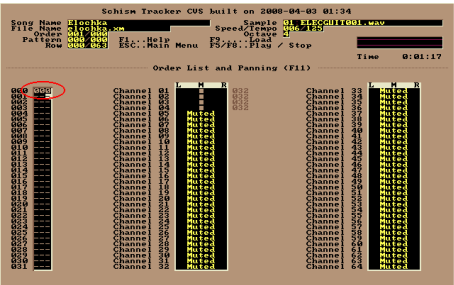 By the way, to save your current progress, you can use the standard keyboard shortcut Ctrl + S. Save frequently! Now, any player will be able to play your music. Schism Tracker will also be able to play it in its full version. 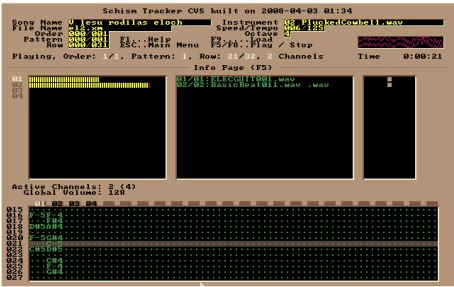 Well friends, I've written a brief introduction on how to use the Schism Tracker software. To learn more, if you're interested in delving deeper into this program, I suggest reading the official program manual, which is 69 pages long, written in 2007 and available for download here. Okay? I hope you're enjoying this series, and that you can learn how to make your own music without having to spend a fortune or learn extremely complicated theories. A big hug and see you next time! |