| Previous Page |
PCLinuxOS Magazine |
PCLinuxOS |
Article List |
Disclaimer |
Next Page |
A Custom Script To Manage Your Wireguard VPN Connection |
|
by Cuig
Because I like simple, non-intrusive ways of getting things done and, for various reasons, other options open to me were not acceptable. Main amongst those is that Proton, my selected VPN provider, only provides their application for distros that have systemd running. There is a very short list of distros they “support”. An alternative called wireguird (note spelling), a nice GUI to manage wireguard VPNs, has had a problem on my installs, in that when a VPN is deactivated it leaves me without an internet connection! So that is my reason for this script. But why a VPN at all? Why do I want to use a VPN? Several reasons really, most of which have been covered in other pages of this magazine, but mostly because of my government’s actions.
I use the wireguard protocol as it is the most recent, secure and fastest of those generally available. I use SUDO in this script as the wireguard.conf files are stored in /etc/wireguard and are owned by root and some of the commands used need root privileges. If the permissions of these wireguard files are wrong, an error is thrown - presumably because this would reduce the security. I have used Zenity for the GUI as there was something I wanted to do that I could not figure out in Yad (which I tried first). Be aware that SUDO needs to be set up for the various elements used in this script. Besides doing that, the dependencies are Zenity, SUDO, wireguard-tools, and in my case for the icon, papirus-icon-theme.
The script will select your primary network connection and only permit one VPN connection to be active at any time. On launch with no VPN active, this is shown. It lists the files with “.conf” extension in the /etc/wireguard directory. These are the files one gets from the VPN service provider. Yours of course will be different to mine shown below. 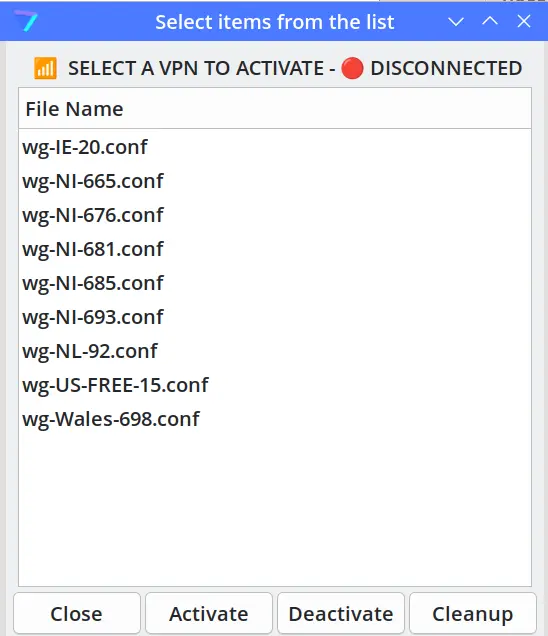 As can be seen from the “Disconnected” at the top, there is no VPN active and you are invited to select one to activate. Having made your selection, simply click the “Activate” button and the VPN is activated. A window is shown to confirm which VPN is activated. Select OK to close this. 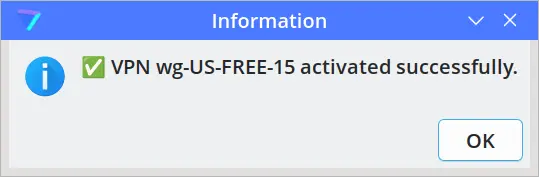 On the next launch of the script the active VPN will be shown under the title. 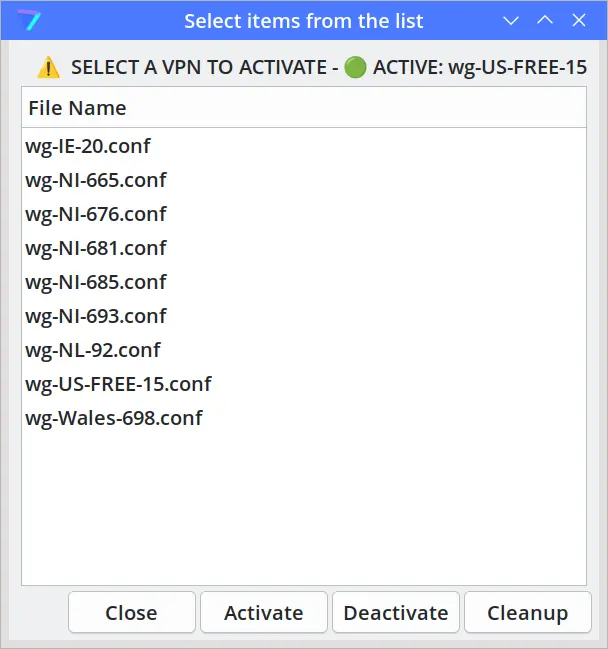 From this window you can either Deactivate the VPN, returning you to your normal IP address, or you can select another VPN file and click Activate. Selecting a new file and the “Activate” button will Deactivate the existing VPN and Activate the newly chosen one, ensuring you have only one VPN active at any time. A small window will inform you of the name of the new VPN you chose. Selecting the Deactivate button will bring up the following window. 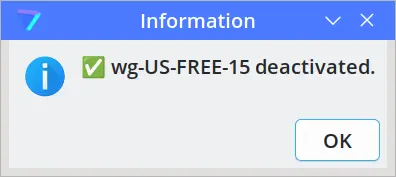 On the main window, the “Close” button is obvious, but the “Cleanup” button deserves some explanation. In case of some mishap, such as a PC freeze or hard shutdown, using the “Cleanup” button should get things back to normal. This option was added to help resolve some fault or failure. It essentially resets your connection back to default. It could happen that your desktop freezes due to some other application or process going wrong and your VPN network is left in a confused state. This should help if this should occur. I use Proton VPN, so I used their icon for the script. The script is easily editable to change the icon – just one entry to be changed. There is not much else to say really. This activates, switches and deactivates VPN connections using a simple interface. Nothing fancy; just functional. I included a desktop file for convenience. I placed the working script in $HOME/bin/ProtonWG, so if you place it elsewhere, the path in the desktop file will need to be edited. First here is the .desktop file, my-vpn-manager.desktop:
Next is the working script, my-vpn-manager.
You can download the bash script from the magazine server, here. Store the file in the directory where you normally store your bash scripts. Be sure to change the filename from wireguard-vpn-manager.sh.txt to wireguard-vpn-manager.sh, and to make the file executable. The bash script is 5.2 KiB in size, so it should download quite quickly.
One aspect of this exercise I had forgotten about was assigning necessary sudo privileges to the user. This is done by a couple of simple edits to the /etc/sudoers file. As we know, to gain full privileges we su to root, and this is achieved by this entry in the file: root ALL=(ALL:ALL) ALL So if we want our user to have similar privileges we add this entry: user ALL=(ALL:ALL) ALL Because we are using sudo within a script we have no means of knowing when it asks for a password, so we specify that sudo does not require a password for that user: user ALL=(ALL:ALL) NOPASSWD: ALL This has the effect of sudo never requiring a password from the 'user' specified. Other users will still need to enter their password. For more specific control over what commands to allow without password, the sudoers entry can be something like this: user ALL=(ALL) NOPASSWD: /usr/bin/wg, /usr/bin/wg-quick, /sbin/ip, /usr/bin/nmcli, /usr/libexec/nm-ifup, /usr/libexec/nm-ifdown, /sbin/dhclient This gives the user specified the use of those commands, using sudo, but without entering a password and so should work within the scripts. All other commands, requiring elevated privileges, will necessitate inputting the password. The blanket entry needs to be present to allow use of SUDO for commands other than specified ...... user ALL=(ALL:ALL) NOPASSWD: ALL I believe that the line above specifying the commands should be sufficient for running the posted scripts.
After posting the original bash script (shown above), Cuig went on to recreate the script as a Python script. The Python script has the added benefit of dynamically showing, via the icon in the notification area, whether the Wireguard VPN connection is currently on or off. You can find the Python script here in the PCLinuxOS forum. The Python script is a little bit larger (approximately 64 KiB, and the script is split between two posts due to its size). You can also download the Python version of the script from the magazine server, here. Just as with the bash scripts you download from the magazine website, store the file in the directory where you normally store your scripts, remove the “.txt” file extension, and make the file executable. To run it, the command should be “python3 wireguard-vpn-manager.py”. |
 No active connections found."
 Cleaned up $count connection(s)."
 SELECT A VPN TO ACTIVATE -
  ACTIVE: $CURRENT"
 SELECT A VPN TO ACTIVATE -
  DISCONNECTED"
 Failed: Another VPN ($FINAL_CHECK) is still active."
 Failed to activate $FILE."