| Previous Page |
PCLinuxOS Magazine |
PCLinuxOS |
Article List |
Disclaimer |
Next Page |
Using Geany As A Typst Editor |
|
by David Pardue (kalwisti)
In the Typst community, the general consensus is that the official Typst web app and/or VSCode [VSCodium] plus the Tinymist extension offer the smoothest writing experience. (VSCodium with the Tinymist extension bundles everything you need, and it is updated frequently. It includes instant preview, monitors your source file for changes and a jump-to-location feature which allows you to jump between the Typst source file and the corresponding location in the Preview pane.) However, if you have a local Typst installation, you may use other editors if you wish. One alternative is vim with the Typst plugin. I will discuss another option in this article: Geany in conjunction with the Typst CLI (Command-Line Interface).
Geany is a popular, versatile text editor and IDE (Integrated Development Environment) based on the GTK3 toolkit. Geany does not have native support for Typst files at the moment. User This method uses Geany along with the Typst CLI, and a separate PDF viewer (as the external Preview app), to edit your local Typst files. The preview is asynchronous, i.e., not simultaneous, but after you make an edit in Geany and save your file, the PDF will auto-update. If you make a syntax error in your Typst source file, the PDF will not compile. You can then check output in the Terminal (where the Typst CLI is running) for detailed error messages about the problem and how to fix it.
Check that you already have these packages installed on your system:
Note: This procedure was tested within PCLinuxOS MATE and Openbox. However, it should work identically with the KDE Plasma and Xfce editions.
Optional: If you wish to add a bit of color syntax highlighting to the displayed source file, you can set the document's filetype to Markdown source file. The syntax highlighting is minimal compared to the detailed highlighting that you see in VSCodium; however, it adds some welcome visual contrast to the Typst source file (personal opinion). To do this, from Geany's Document menu > choose Set Filetype > then select Markup Languages > and click the radio button beside Markdown source file.
You should see output similar to this:
The watch command monitors the input file and its dependencies for changes and automatically recompiles to PDF.
The screenshot below gives you an idea of how this arrangement looks. (To reduce clutter, you can minimize windows as needed.) 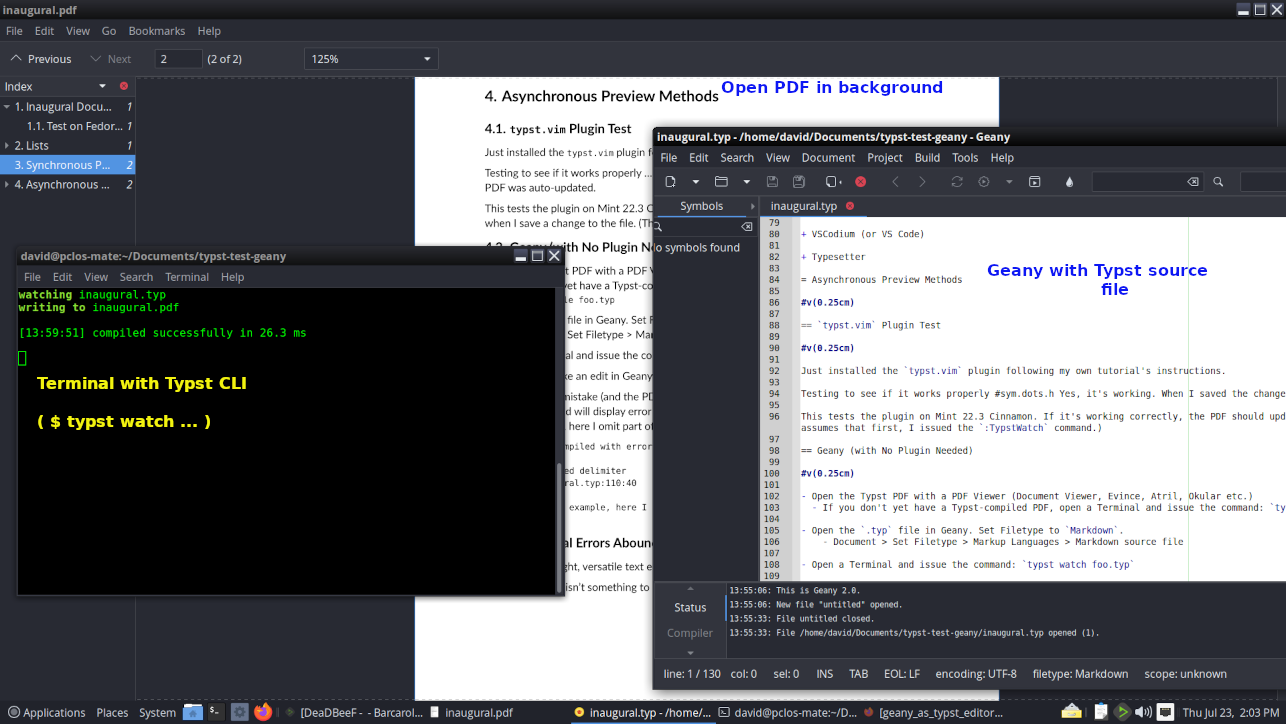
If you make a syntax error in your Typst source file, the PDF will not compile. You can then check output in the Terminal (where the Typst CLI is running) for detailed error messages about the problem and how to fix it.
In the example below, I intentionally omitted the required colon in the term list. (It should be 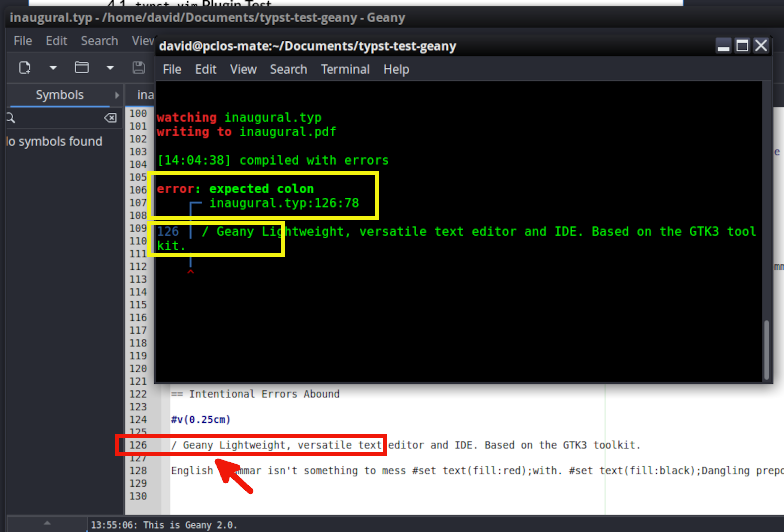
A more complicated example shows that error messages sometimes flag the precise location within a line. The #set command to change the text color to red should end with a semicolon in this instance:
Another The Terminal output helpfully displays the location of the missing semicolons: 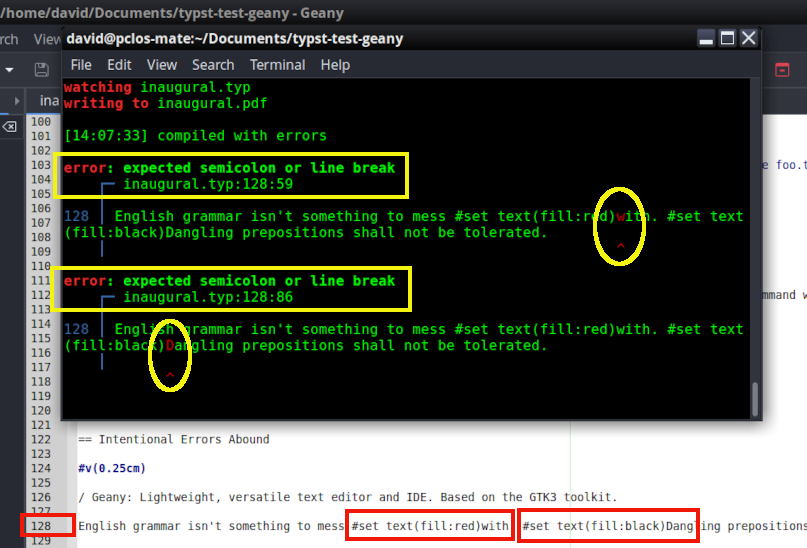 Once you have corrected these two minor mistakes and saved your change, the Typst source file will compile successfully to PDF: 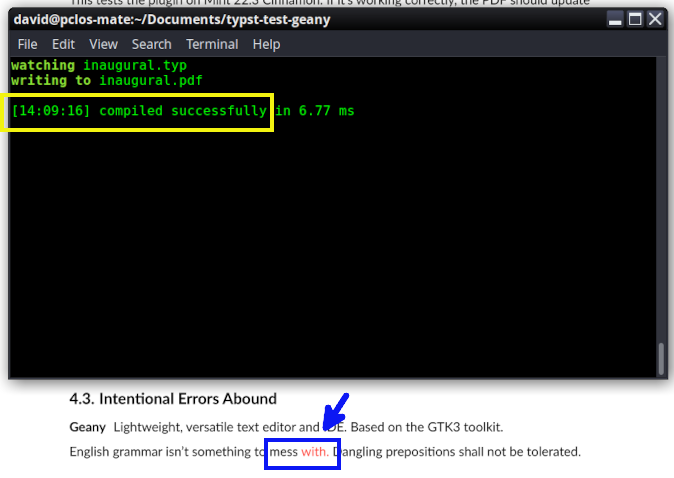
Although editing Typst files with Geany sounds cumbersome and lacks real-time preview, it works well. Some users may find it less distracting than working with VSCode/VSCodium. This approach has the advantages that no external utilities — such as the Tinymist extension — are needed; in addition, people who feel intimidated by vi(m) may appreciate a user-friendly, GUI text editor such as Geany. |